
Navigation: Rate & Pay → Accounting Company
Click here for information on how to use a setup window.
Use this screen to link Ditat to your accounting software and configure how data is synced between the two systems.
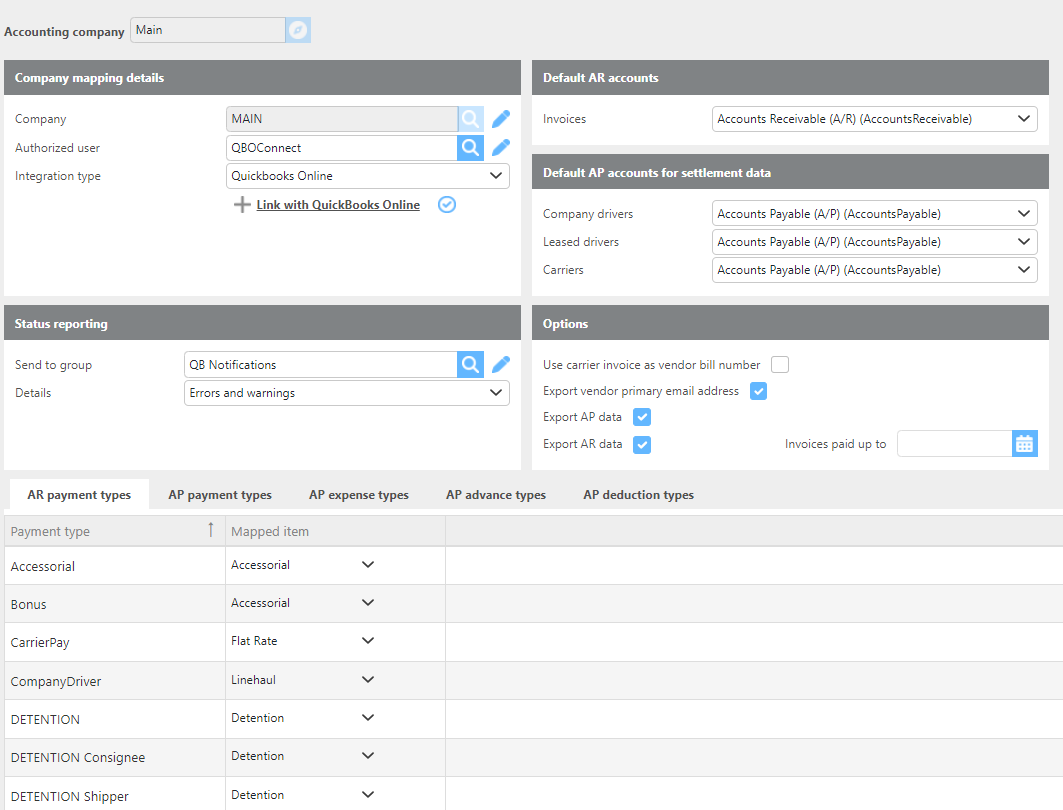
Company Mapping Details
|
Fields |
Description |
|
Accounting company |
Enter the name of the company that will be synced to your accounting software. |
|
Company |
Select which of your Ditat companies will be synced with your accounting software. |
|
Authorized user |
Select the Ditat user who will log in to run the sync. |
|
Integration type |
Select whether you are integrating with QuickBooks Online, QuickBooks Desktop, or SAP Business One. |
|
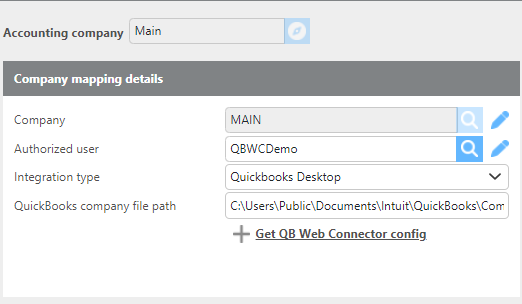
QuickBooks company file path |
If QuickBooks Desktop is selected, enter the file path for the QuickBooks company file that will be synced. |
|
Link with QuickBooks Online |
If QuickBooks Online is selected, click this to open a browser window and log in to your QuickBooks Online account. |
|
Get QB Web Connector config |
If QuickBooks Desktop is selected, click this to download the configuration file to be added to the QuickBooks Web Connector. |
Status Reporting
|
Field |
Description |
|
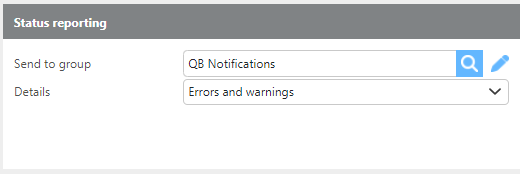
Send to group |
Select the group that will be notified when the QuickBooks sync runs. |
|
Details |
Select the level of detail included in the sync report: Details, Errors Only, or Errors and Warnings. |
Default AR Accounts/AP Accounts for settlement data
|
Field |
Description |
|
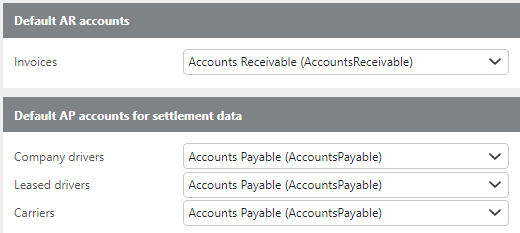
Invoices |
Select the AR account that invoices should be linked to. |
|
Company drivers |
Select the AP account that the company driver settlements should be linked to. |
|
Leased drivers |
Select the AP account that the leased driver settlements should be linked to. |
|
Carriers |
Select the AP account that carrier settlements should be linked to. |
Options
|
Field |
Description |
|---|---|
|
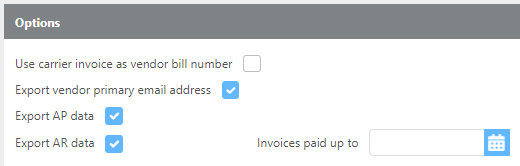
Use carrier invoice as vendor bill number |
Check this box to have the vendor bill number in your accounting software match the carrier invoice number from the trip. |
|
Export vendor primary email address |
Check this box to export the vendor's primary email address. If unchecked, the Pay To email address will be used instead. |
|
Export AP data |
Check this box to export Accounts Payable data to your accounting software. Leave unchecked to exclude this data. |
|
Export AR data |
Check this box to export Accounts Receivable data to your accounting software. Leave unchecked to exclude this data. |
|
Invoices paid up to |
Use this option to mark invoices older than a specified date as paid. This is intended for situations where historical payment data is not available. Note: This updates the invoice status in Ditat TMS only — it does not update your accounting software. |
Mapping
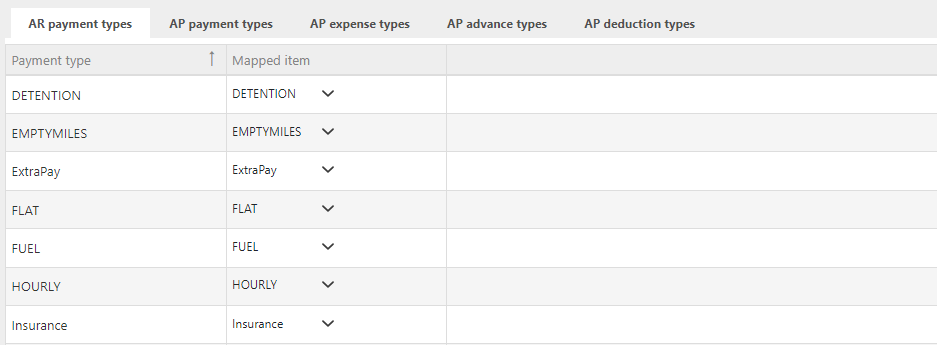
Use this section to map your Accounts Receivable and Accounts Payable types between Ditat and your accounting software. The payment, expense, advance, and deduction types on the left are the types used in Ditat. The mapped item on the right is where each Ditat type should be directed in your accounting software.
Note: You will need to run a sync first to pull in the account types from your accounting software before mapping can be completed.