
The Process Freight Bills screen displays all invoices that have been posted in Ditat and shows whether they have been processed by EDI partners.
Freight bills are automatically transferred to EDI partners around 4:00 AM each morning for all invoices posted the previous day. This screen can also be used to import and process freight bills manually.
Search

|
Field |
Description |
|
Import all |
Imports all invoices that have not yet been imported, regardless of how the screen is currently filtered. |
|
Process all |
Processes all invoices that have not yet been processed, regardless of how the screen is currently filtered. |
|
From date |
The start date for the freight bills to display. |
|
To date |
The end date for the freight bills to display. |
|
Partner |
Filter by EDI partner. |
|
Customer |
Filter by customer. |
|
Status |
Filter by status: All, New, or Sent. |
|
Acknowledged |
Filter by acknowledgment status: All, Acknowledged, or Rejected. |
|
Invoice |
Filter by a specific invoice ID. |
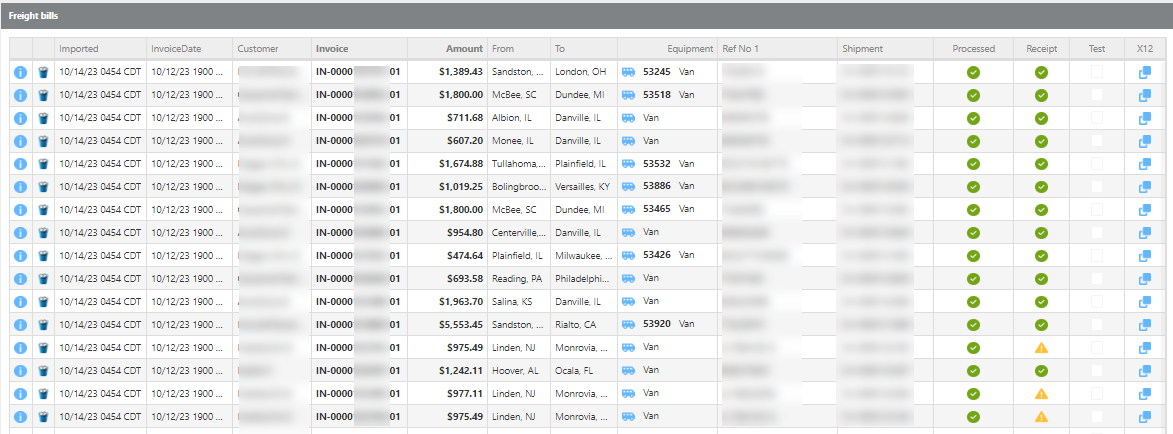
Freight Bills
|
Field |
Description |

|
Click this button to view details for this freight bill. |

|
Click this button to delete this freight bill. See resending instructions below. |
|
Imported |
The date and time this freight bill was last imported. |
|
Invoice date |
The invoice date and time. |
|
Partner |
The EDI partner this freight bill is for. |
|
Customer |
The EDI customer this freight bill is for. |
|
Invoice |
The Ditat invoice ID. |
|
Amount |
The total amount invoiced. |
|
From |
The pickup city and state for this load. |
|
To |
The delivery city and state for this load. |
|
Equipment |
The equipment ID and type used for this load. |
|
Ref No1 |
The reference number from Reference Field 1 on the shipment. |
|
Ref No 2 |
The reference number from Reference Field 2 on the shipment. |
|
Ref No 3 |
The reference number from Reference Field 3 on the shipment. |
|
Shipment |
The Ditat shipment ID. |
|
Processed |
Displays a green checkmark when the freight bill has been successfully processed. |
|
Receipt |
Indicates whether a receipt (997 file) was received. See icon breakdown below. Green checkmark - A receipt (997 file) was received for this freight bill. Yellow Info - No receipt was received. This is not necessarily an issue — some partners do not send 997 response files. Blue Info - An error prevented the file from being generated. Some partners require specific information; if that information is not available, the freight bill cannot be sent. Red Exclamation - The partner returned a 997 indicating there was an issue with what was sent. |
|
Test |
Checked if this was a test freight bill. |
|
X12 |
Displays the EDI details for this freight bill. |
Resending a Freight Bill
To resend a freight bill — for example, if reference numbers were incorrect or missing — follow these steps:
-
Update the shipment in Ditat with the correct information.
-
Delete the freight bill from this screen using the Delete button.
-
Click Import All to reimport the freight bill.
-
Click Process All to reprocess and resend it with the updated information.