
Navigation: Assets → Set Up Asset Options
Click here for information on how to use a setup window.
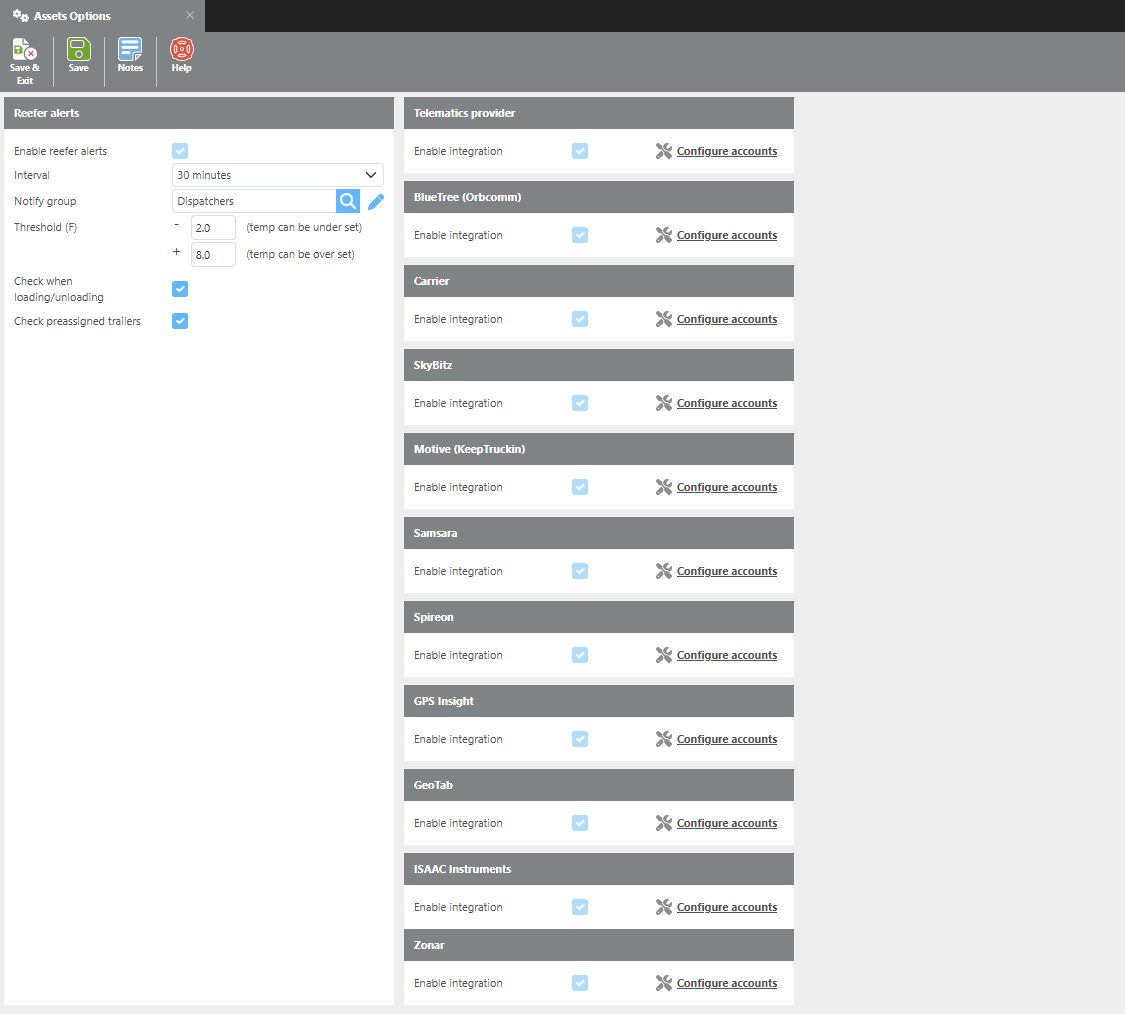
The Asset Options screen is where GPS tracking and HOS integrations are configured. Supported integrations include Telematics providers, Blue Tree (Orbcomm), Carrier, SkyBitz, Motive (KeepTruckin), US Fleet Tracking, Samsara, Spireon, GPS Insight, GeoTab, ISAAC Instruments, and Zonar.
Note: All integrations must be enabled by Ditat before use. For details and pricing, contact sales@ditat.com.
Reefer Alerts
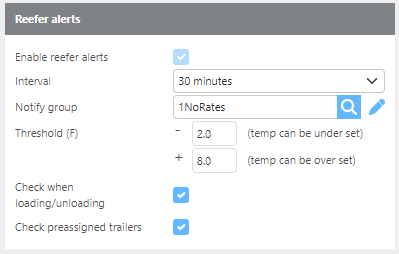
Reefer alerts are supported with the Blue Tree (Orbcomm), Samsara, and Carrier integrations.
|
Field |
Description |
|
Enable reefer alerts |
Must be enabled by Ditat. Contact sales@ditat.com for details. |
|
Interval |
Select how frequently alerts should be checked and sent. |
|
Notify group |
Select the group that will receive email notifications about any reefer issues. |
|
Threshold |
Select the acceptable temperature range around the specified target temperature. |
|
Check when loading/unloading |
Check this box to monitor temperature during the loading and unloading process. |
|
Check preassigned trailers |
Check this box to monitor temperature for pre-assigned trailers. |
Telematics provider

This is a set up screen for telematic providers Ditat has an integration with.
Blue Tree(Orbcomm)
|
Field |
Description |
|
Enable Integration |
Must be enabled by Ditat. Contact sales@ditat.com for details. |
|
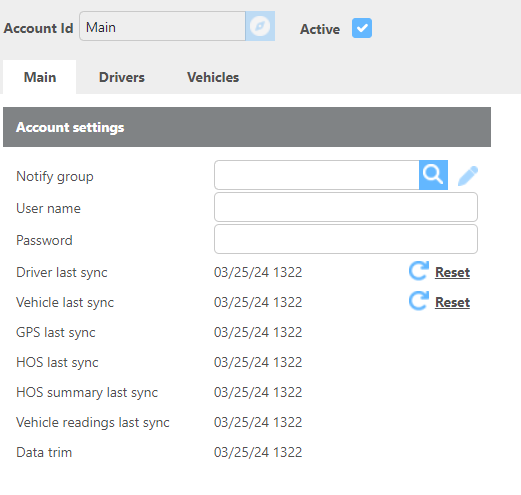
Notify group |
Select the group that will be notified if an error occurs. |
|
Username |
Enter your Blue Tree username. |
|
Password |
Enter your Blue Tree password. |
|
Last Driver sync on |
Displays the date of the last driver sync. Click Reset to re-sync. |
|
Last Vehicle sync on |
Displays the date of the last vehicle sync. Click Reset to re-sync. |
|
Last GPS sync on |
Displays the date of the last GPS sync. |
|
Last HOS sync on |
Displays the date of the last HOS sync. |
|
Last HOS summary on |
Displays the date of the last HOS summary. |
|
Vehicle readings last sync |
Displays the date of the last vehicle readings sync. |
|
Data trim |
Displays the date of the last data trim. |
Carrier
|
Field |
Description |
|---|---|
|
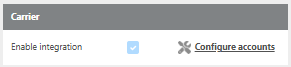
Enable Integration |
Must be enabled by Ditat. Contact sales@ditat.com for details. |
|
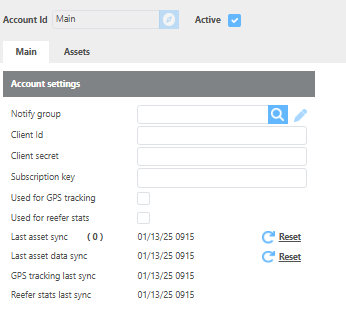
Client ID |
Enter the client unique ID. |
|
Client Secret |
Enter the client unique secret. |
|
Subscription key |
Enter the client subscription key. |
|
Used for GPS tracking |
Check this box to use this integration for GPS tracking. |
|
Used for reefer stats |
Check this box to use this integration for reefer statistics. |
|
Last asset sync |
Displays the date of the last asset sync. Click Refresh to update. |
|
Last asset data sync |
Displays the date of the last asset data sync. Click Refresh to update. |
|
GPS tracking last sync |
Displays the date of the last GPS tracking sync. |
|
Reefer stats last sync |
Displays the date of the last reefer stats sync. |
SkyBitz
|
Field |
Description |
|
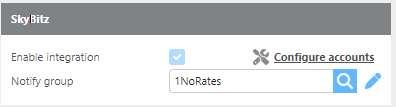
Enable integration |
Must be enabled by Ditat. Contact sales@ditat.com for details. |
|
Notify Group |
Select the group that will be notified if an error occurs. |
|
Configure accounts |
Click to open the Accounts section and configure SkyBitz account details. |
Account Configuration
|
Field |
Description |
|
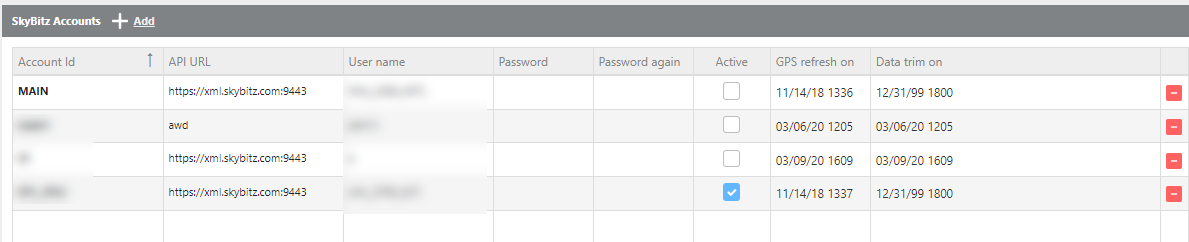
Account Id |
Enter a name to identify this account. |
|
API URL |
Enter the API URL and port. |
|
User name |
Enter your SkyBitz username. |
|
Password |
Enter your SkyBitz password. |
|
Active |
Check this box to mark this account as active. |
|
GPS refresh on |
Displays the date and time of the last GPS refresh. |
|
Data trim on |
Displays the date and time of the last data trim. |
Motive (KeepTruckin)
|
Field |
Description |
|
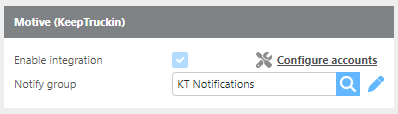
Enable integration |
Must be enabled by Ditat. Contact sales@ditat.com for details. |
|
Notify Group |
Select the group that will be notified if an error occurs. |
|
Configure accounts |
Click to open the Accounts section and configure SkyBitz account details. |
|
Field |
Description |
|
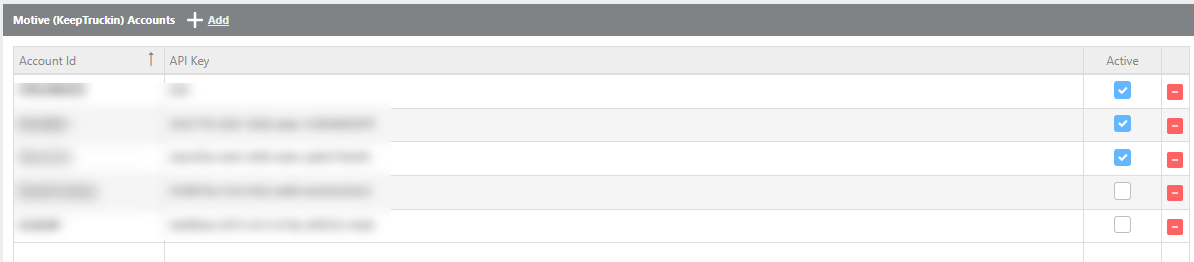
Account Id |
Enter a name to identify this account. |
|
API Key |
Enter the API key for your Motive account. |
Tip: API keys can be generated in the Motive web portal under Admin → Developers → API Access.
US Fleet Tracking (Live View GPS)
|
Field |
Description |
|
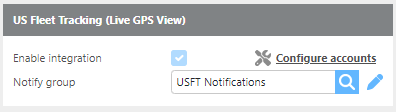
Enable integration |
Must be enabled by Ditat. Contact sales@ditat.com for details. |
|
Notify Group |
Select the group that will be notified if an error occurs. |
|
Configure accounts |
Click to open the Accounts section and configure SkyBitz account details. |

|
Field |
Description |
|
Account Id |
Enter a name to identify this account. |
|
API Key |
Enter the API key for your account. |
|
API Secret |
Enter the API secret for your account. |
|
Active |
Check this box to mark this account as active. |
|
Data trim on |
Displays the date and time of the last data trim. |
Samsara
|
Field |
Description |
|
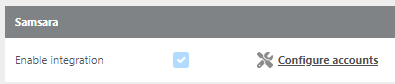
Enable integration |
Must be enabled by Ditat. Contact sales@ditat.com for details. |
|
Configure accounts |
Click to open the Accounts section and configure SkyBitz account details. |
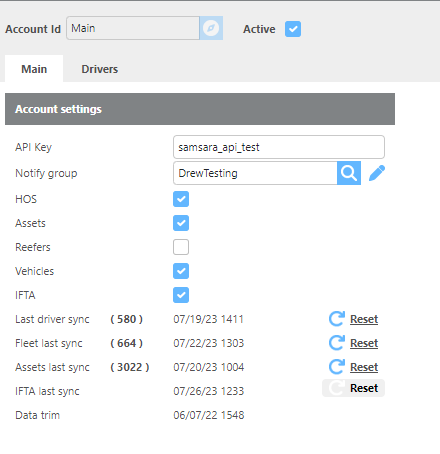
Samsara - Main
|
Field |
Description |
|
API Key |
Enter the API key for your Samsara account. |
|
Notify Group |
Select the group that will be notified if an error occurs. |
|
HOS |
Check this box to enable HOS tracking via Samsara. |
|
Assets |
Check this box to enable asset tracking via Samsara. |
|
Last driver sync |
Click Reset to initiate a driver sync. |
|
Fleet last sync |
Click Reset to initiate a fleet sync. |
|
Asset last sync |
Click Reset to initiate an asset sync. |
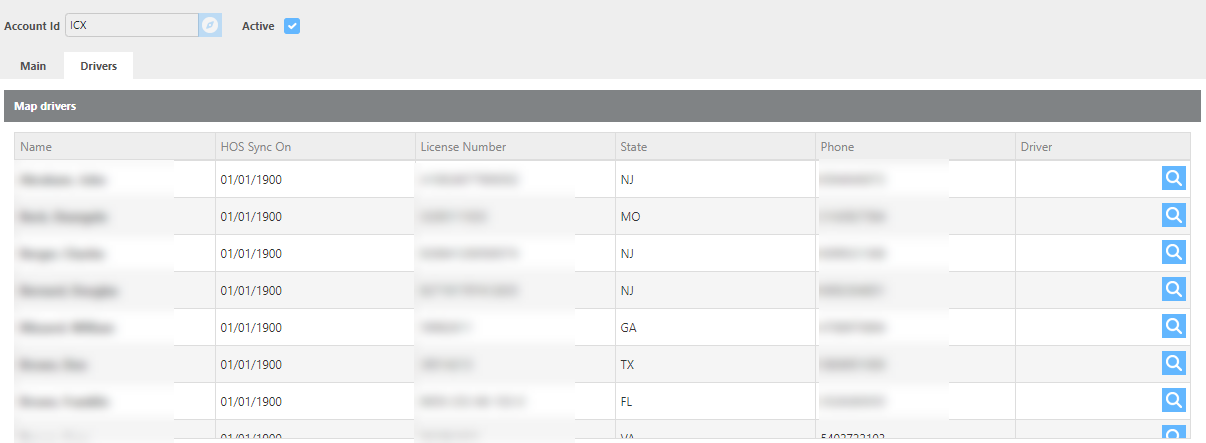
Samsara - Drivers
|
Field |
Description |
|
Name |
The driver name received from Samsara. |
|
HOS Sync on |
The driver's license number received from Samsara. |
|
License number |
The driver's license number received from Samsara. If this matches a driver in Ditat, HOS will be linked automatically. |
|
State |
The license state received from Samsara. |
|
Phone |
The phone number received from Samsara. If this matches a driver's phone number in Ditat, HOS will be linked automatically. |
|
Driver |
Manually select the Ditat driver to link to this Samsara record. |
Samsara HOS Integration
Ditat links HOS data from Samsara using the following matching methods, in order of priority:
-
Phone Number – If the phone number from Samsara matches a driver's phone number in Ditat, HOS data will be linked to that driver.
-
Driver's License – If the license number and state from Samsara match a driver in Ditat, HOS data will be linked to that driver.
-
Manual Match – Use the Driver lookup field to manually match a Samsara driver record to a driver in Ditat.
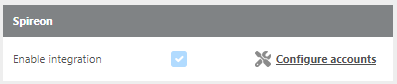
Spireon
|
Field |
Description |
|
Enable integration |
Must be enabled by Ditat. Contact sales@ditat.com for details. |
|
Configure accounts |
Click to open the Accounts section and configure SkyBitz account details. |
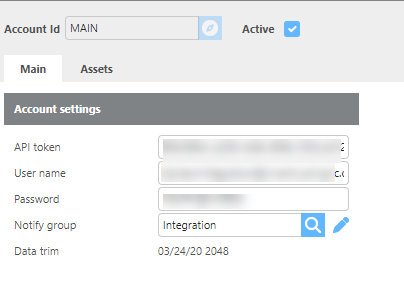
Spireon - Main
|
Field |
Description |
|
Active |
Check this box if this is an active Spireon account. |
|
API Token |
Enter the API token provided by Spireon. |
|
User name |
Enter the username for the Spireon API. |
|
Password |
Enter the password for the Spireon API. |
|
Notify group |
Select the group that will be notified if an error occurs. |
|
Data trim |
Displays the last date and time the system connected and performed a data trim. |
Spireon - Assets
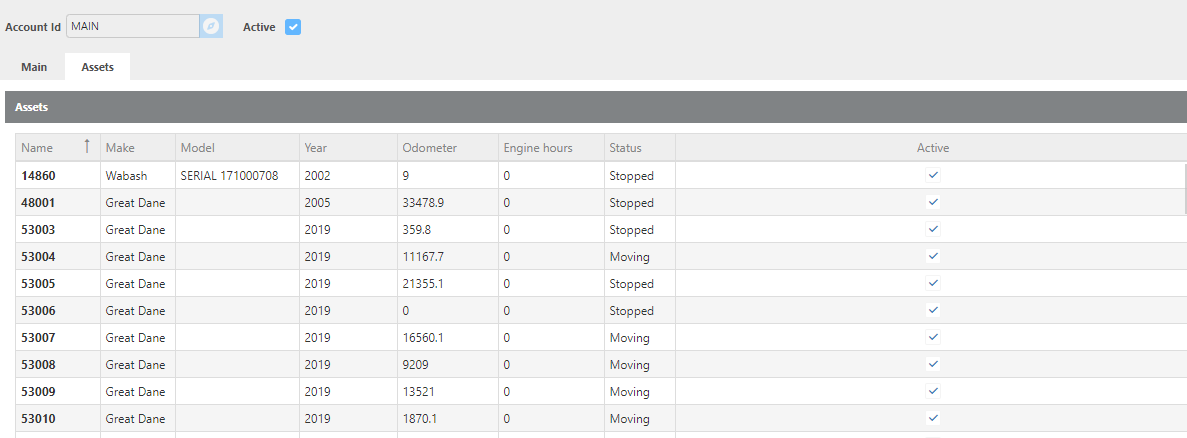
Displays a list of assets in the Spireon system, including make, model, year, odometer reading, and active status.
GPS Insight
|
Field |
Description |
|
Enable integration |
Must be enabled by Ditat. Contact sales@ditat.com for details. |
|
Configure accounts |
Click to open the Accounts section and configure SkyBitz account details. |
GPS Insight - Main
|
Field |
Description |
|
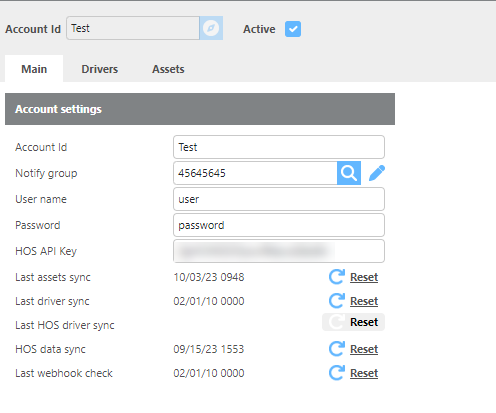
HOS data sync |
Enter the username used for tracking and HOS data. |
|
Last asset sync |
Enter the password used for tracking and HOS data. |
|
Last driver sync |
Select the group that will be notified if an error occurs. |
|
Notify Group |
Click Reset to initiate an HOS sync. |
|
Password |
Click Reset to initiate an asset sync. |
|
Username |
Click Reset to initiate a driver sync. |
GPS Insight - Drivers
|
Field |
Description |
|
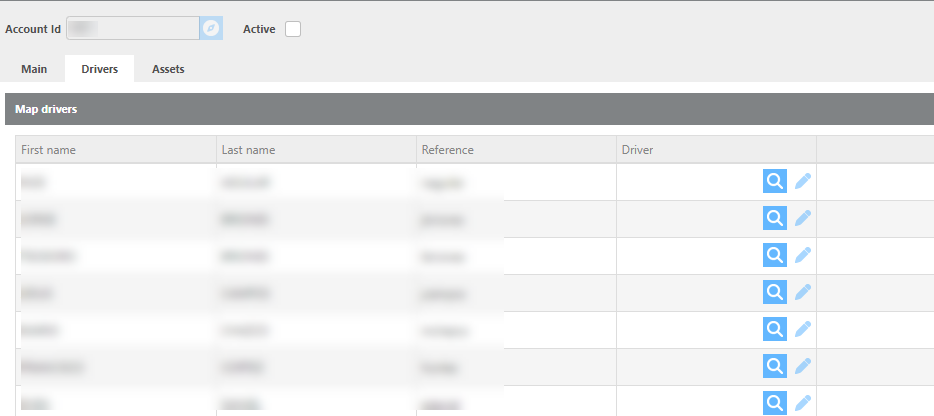
First Name |
The driver's first name received from GPS Insight. |
|
Last name |
The driver's last name received from GPS Insight. |
|
Reference |
The driver ID received from GPS Insight. |
|
Driver |
Select the Ditat driver to link to this GPS Insight record for HOS. If criteria-based matching applies, this may be auto-selected. |
GPS Insight - Assets
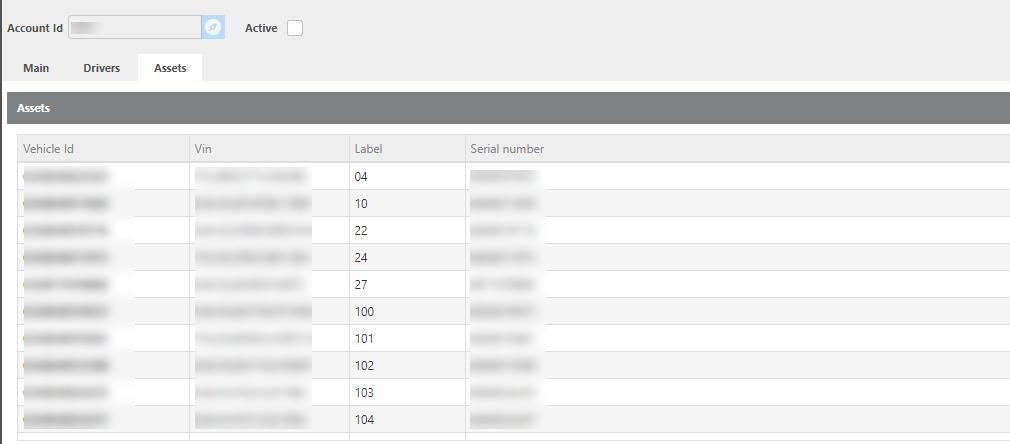
|
Field |
Description |
|
Vehicle id |
The vehicle ID pulled from GPS Insight. This number must be added to the mobile device in Ditat to enable asset tracking. |
|
Vin |
The VIN number from GPS Insight for this device. |
|
Label |
The asset ID from GPS Insight. |
|
Serial number |
The serial number from GPS Insight for this device. |
GeoTab
|
Field |
Description |
|
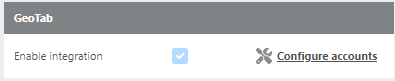
Enable integration |
Must be enabled by Ditat. Contact sales@ditat.com for details. |
|
Configure accounts |
Click to open the Accounts section and configure SkyBitz account details. |
GeoTab - Main
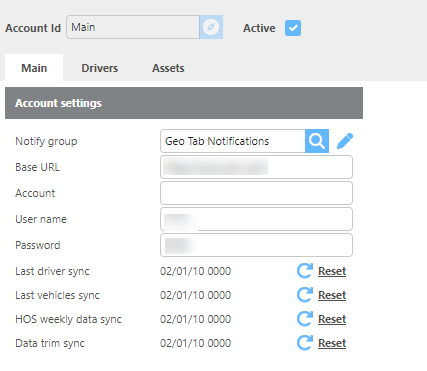
|
Field |
Description |
|
Notify group |
Select the group that will be notified if an error occurs. |
|
Base URL: |
Enter the base URL provided during setup. |
|
User name |
Enter your GeoTab username. |
|
Password |
Enter your GeoTab password. |
|
Last driver sync |
Click Reset to initiate a driver sync. |
|
Last vehicle sync |
Click Reset to initiate a vehicle sync. |
|
HOS weekly data sync |
Click Reset to initiate an HOS sync. |
|
Data trim sync |
Click Reset to initiate a data trim sync. |
GeoTab - Drivers
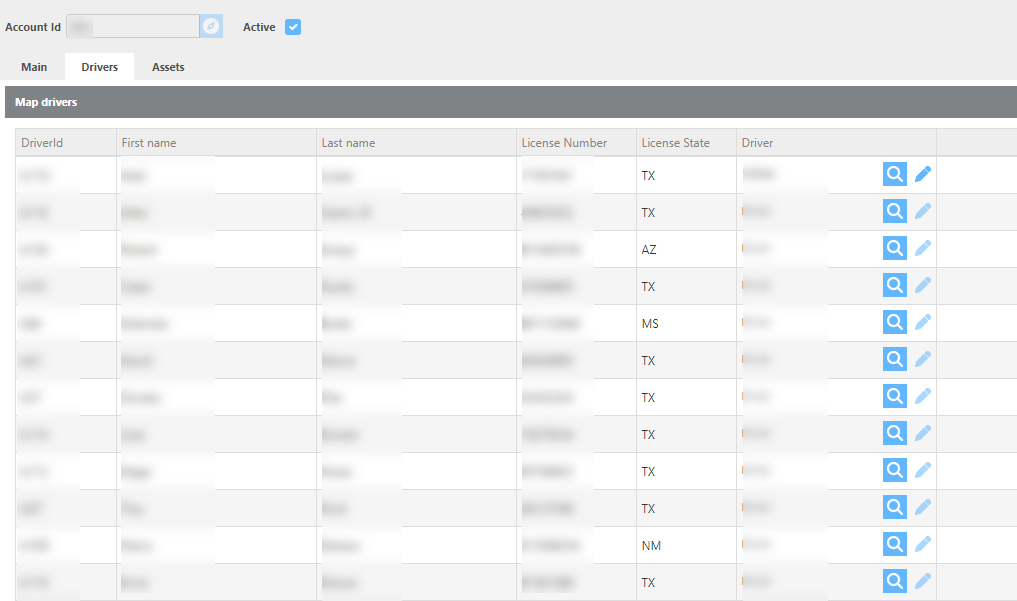
|
Field |
Description |
|
Driver Id |
The driver ID pulled from GeoTab during sync. |
|
First name |
The driver's first name received from GeoTab. |
|
Last name |
The driver's last name received from GeoTab. |
|
Name |
The full name received from GeoTab. |
|
License number |
The driver's license number received from GeoTab. If this matches a driver in Ditat, HOS will be linked automatically. |
|
License state |
The license state received from GeoTab. |
|
Driver |
Select the Ditat driver to link to this GeoTab record for HOS. If criteria-based matching applies, this may be auto-selected. |
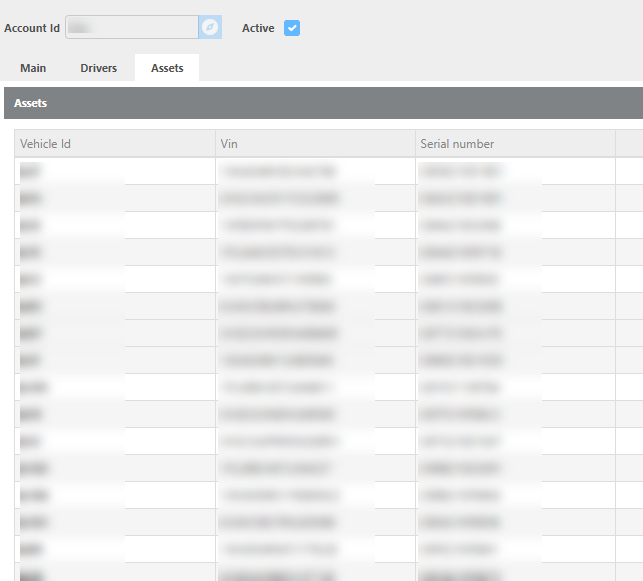
Geo Tab - Assets
|
Field |
Description |
|
Vehicle Id |
The vehicle ID pulled from GeoTab. This number must be added to the mobile device in Ditat to enable asset tracking. |
|
Vin |
The VIN number from GeoTab for this device. |
|
Label |
The device label from GeoTab. |
|
Serial number |
The serial number from GeoTab for this device. |
ISAAC Instruments
|
Field |
Description |
|
Enable integration |
Must be enabled by Ditat. Contact sales@ditat.com for details. |
|
Configure accounts |
Click to open the Accounts section and configure SkyBitz account details. |
|
Field |
Description |
|---|---|
|
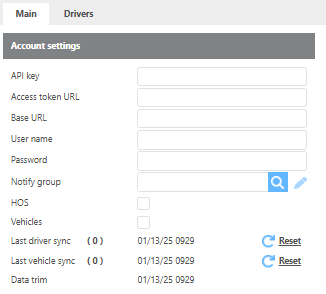
Enable Integration |
Must be enabled by Ditat. Contact sales@ditat.com for details. |
|
API Key |
Enter the customer API key. |
|
Access token URL |
Enter the customer access token URL. |
|
Base URL |
Enter the base URL. |
|
User name |
Enter the username. |
|
Password |
Enter the password. |
|
Notify group |
Select the group that will be notified if an error occurs. |
|
HOS |
Check this box to enable HOS tracking in Ditat. |
|
Vehicles |
Check this box to enable vehicle tracking. |
|
Last driver sync |
Displays the date of the last driver sync. Click Refresh to update. |
|
Last vehicle sync |
Displays the date of the last vehicle sync. Click Refresh to update. |
|
Data trim |
Displays the date of the last data trim. |
Zonar
|
Field |
Description |
|
Enable integration |
This must be Enabled by Ditat for details and pricing please email sales@ditat.com. |
|
Account code |
Enter your Zonar account code. |
|
User name |
Enter your Zonar username. |
|
Password |
Enter your Zonar password. |
|
Notify group |
Select the group that will be notified if an error occurs. |