
Within each Comdata account, you can manage FTP settings, web service settings, customers (sub-accounts), security cards, and advance import settings.
FTP Settings
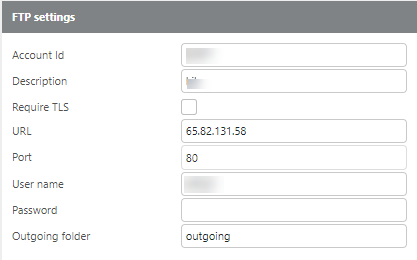
FTP settings will be configured for your setup and should not be edited without checking with support@ditat.com.
|
Field |
Description |
|---|---|
|
Account Id |
Enter your Comdata account ID. |
|
Description |
Enter a description for this account. |
|
Require TLS |
Check this box if the account requires TLS. This should be checked by default. |
|
URL |
Enter the Comdata FTP URL. Default: |
|
Port |
Enter the Comdata port. Default: |
|
Username |
Enter the FTP username. By default, Ditat uses the same username and password for all Comdata accounts and identifies customer transactions by account number. |
|
Password |
Enter the FTP password. By default, Ditat uses the same username and password for all Comdata accounts and identifies customer transactions by account number. |
|
Outgoing folder |
Enter the outgoing folder path if one is required. |
Web Service Settings
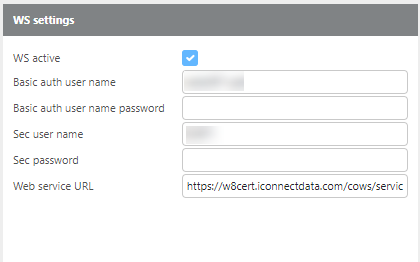
Web service settings will be configured for your setup and should not be edited without checking with support@ditat.com.
|
Field |
Description |
|---|---|
|
WS active |
Check this box if you are using the second-tier Comdata integration. This must be enabled by Ditat. Contact sales@ditat.com for details and pricing. |
|
Basic auth user name |
Enter the web service username provided by Comdata. |
|
Basic auth user name password |
Enter the web service password provided by Comdata. |
|
Sec user name |
Enter the secondary username provided by Comdata. |
|
Sec password |
Enter the secondary password provided by Comdata. |
|
Web service URL |
Enter the web service URL. Default: |
Intraday web service settings
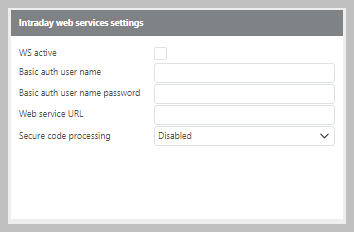
Web service settings will be configured for your setup and should not be edited without checking with support@ditat.com.
|
Field |
Description |
|---|---|
|
WS active |
Only available with the second-tier Comdata integration. Contact sales@ditat.com to enable this feature. |
|
Basic auth user name |
Enter the web service username provided by Comdata. |
|
Basic auth user name password |
Enter the web service password provided by Comdata. |
|
Web service URL |
Enter the secondary username provided by Comdata. |
|
Secure code processing |
Controls how fuel cards are secured with a PIN at the pump. Disabled — cards function normally without a PIN. Enabled with DMD — generates a PIN for drivers with a linked fuel card and sends it to the linked user. Cards not linked to a driver will function without a PIN. Enabled — generates a PIN for all cards regardless of driver link. The PIN can be retrieved from the Comdata Fuel Card screen in the Trip Number field. |
Customers
|
Field |
Description |
|
Customer Id |
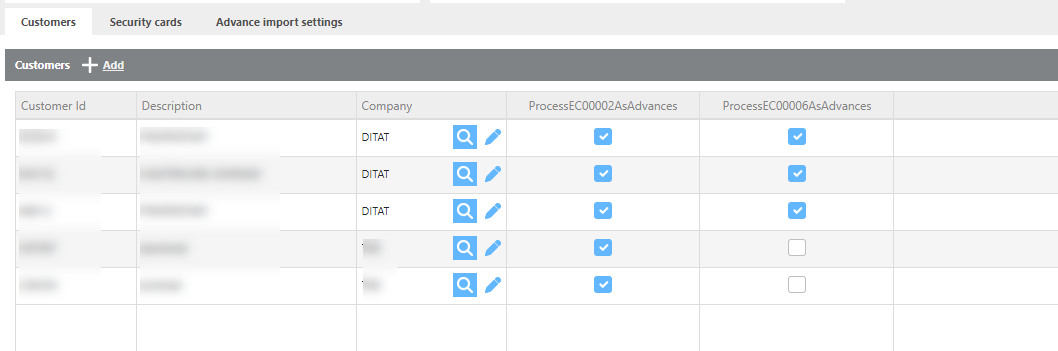
Enter the Comdata customer ID as specified on the account sign-up form. |
|
Description |
Enter a description for this sub-account. |
|
Company |
Select the Ditat company associated with this Comdata account. |
|
ProcessEC00002AsAdvances |
Check this box to process the total amount issued as an advance. |
|
ProcessEC00006AsAdvances |
Check this box to process only the amount used as an advance. |
Note: Only one file type can be selected per customer setup — either EC00002 or EC00006. See the Comdata File Types section below for more information on the differences between these two options.
Security Cards
The Security Cards section is used to assign Comdata portal permissions to specific Ditat users.
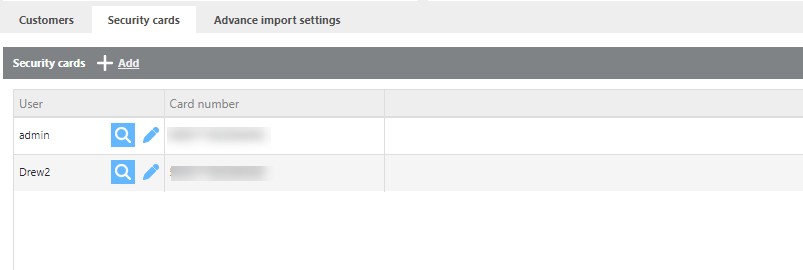
|
Field |
Description |
|
User |
Select the Ditat user to assign security permissions to. |
|
Card number |
Enter the Comdata card number used by this user to log in to the Comdata portal. The card's permissions in the Comdata portal will apply when accessed through Ditat. |
Note: A single Comdata card can be assigned to multiple Ditat users. However, for tracking purposes it is strongly recommended to assign a separate card number to each user so that each user has their own specific permissions and activity can be tracked individually.
Advance Import Settings
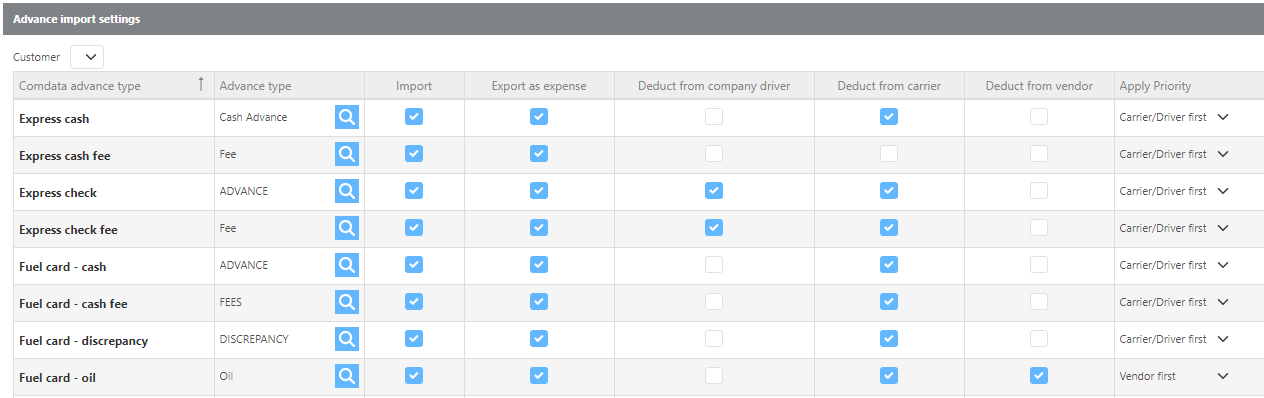
|
Field |
Description |
|
Comdata advance type |
A predefined list of advance types that Comdata may send over for your account. These types are set by Comdata and cannot be modified. |
|
Advance type |
Select the Ditat advance type to link to this Comdata advance type. |
|
Import |
Check this box to import this advance type when advances are imported. |
|
Export as expense |
Check this box to export this advance type to your accounting software by default when the batch is posted. |
|
Deduct from company driver |
Check this box to mark this advance type for deduction from a company driver by default. |
|
Deduct from carrier |
Check this box to mark this advance type for deduction from a leased driver by default. |
|
Apply Priority |
Use this field to specify which party should be deducted from first if both a vendor and a carrier are listed on the advance. |
Example: If a leased driver and a vendor are both linked to an advance, the Apply Priority setting determines which party the advance is deducted from.
Comdata File Types
Comdata sends different file types depending on the transaction type.
Fuel Transactions — Fuel transactions are received as an FM00092 file.
Comchecks — Comchecks can be received as one of two file types:
-
EC00006— Shows the actual amount used. -
EC00002— Shows the total amount issued.
Tip: If using Real-Time Advances, it is recommended to use the
EC00006file type. When imported, this file type runs an additional process to determine whether the advance was issued from Ditat or the Comdata portal. If it was not issued from Ditat, the advance is added to the Real-Time Advances screen as "given by Admin," allowing it to be managed from within Ditat.
Comcheck Example: If a driver is given a $1,000 Comcheck and uses $800 today and $200 tomorrow — with EC00006, two advances are imported: one for $800 and one for $200. With EC00002, a single advance of $1,000 is imported.
Comdata Rebates
Comdata rebates are handled differently than other fuel providers and can be sent in one of two ways. Comdata sends rebate data based on how it is received from the fuel store — Ditat has no control over which indicator is received.
-
Rebate with an N indicator — The rebate appears as a negative line with the rebate amount. This reduces the total advance amount without changing the fuel price.
-
Rebate with an R indicator — The rebate is already included in the amount sent, meaning the total has already been reduced. No separate rebate line will appear in the TMS.