
Navigation: Rate & Pay → Set Up Options
Click here for information on how to use a setup window.
Rate & Pay Options control features and default settings throughout the Rate & Pay module.
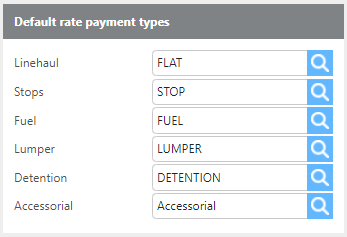
Default Rate Payment Types
|
Field |
Description |
|
Linehaul |
Select the default payment type for linehaul charges. |
|
Stops |
Select the default payment type for stop charges. |
|
Fuel |
Select the default payment type for fuel charges. |
|
Lumper |
Select the default payment type for lumper charges. |
|
Detention |
Select the default payment type for detention charges. |
|
Accessorial |
Select the default payment type for accessorial charges. |
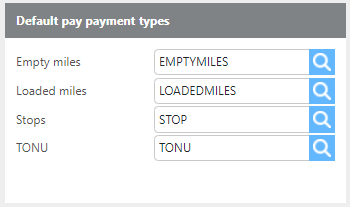
Default Pay Payment Types
|
Field |
Description |
|
Empty miles |
Select the default payment type for empty miles pay. |
|
Loaded miles |
Select the default payment type for loaded miles pay. |
|
Stops |
Select the default payment type for stop pay. |
|
TONU |
Select the default payment type for TONU pay. |
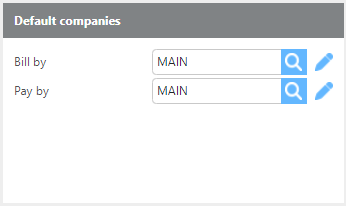
Default Companies
|
Field |
Description |
|
Bill by |
Select the company that will be used by default on the Invoicing screen. Users can switch to another company after the batch is saved. |
|
Pay by |
Select the company that will be used by default on the Settlements screen. Users can switch to another company after the batch is saved. |
Integrations
All integrations must be enabled by Ditat before use. For details and pricing, contact support@ditat.com. Once an integration is enabled, click Configure to complete the setup.
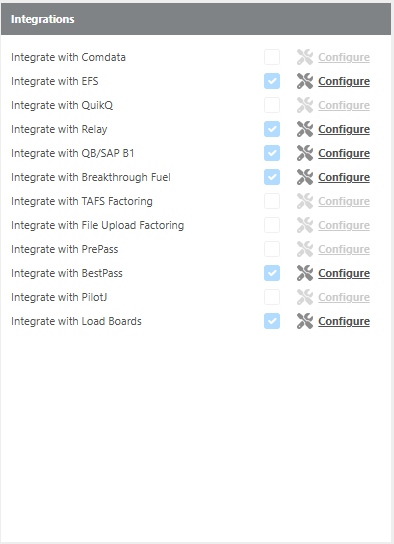
List of Rate & Pay Integrations
-
Integration
-
Comdata
-
EFS
-
Quick Q
-
MSTS
-
QB / SAP
-
B1Breakthrough Fuel
-
TAFS Factoring
-
File Upload Factoring
-
OTR Capital Factoring
-
RTS Factoring
-
Triumph Factoring
-
PrePass
-
Best Pass
-
PilotJ
Auto Rate and Pay
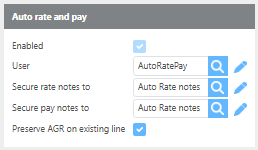
|
Field |
Description |
|
Enabled |
Must be enabled by Ditat. Contact support@ditat.com for details. |
|
User |
Select the AutoRatePay user that will log in and apply rate and pay updates to loads automatically. |
|
Secure rate notes to |
Select the user group that will have access to view notes generated by the AutoRatePay user for rate updates on shipments. |
|
Secure pay notes to |
Notes ToSelect the user group that will have access to view notes generated by the AutoRatePay user for pay updates on trips. |
|
Preserve AGR on existing line |
When this box is checked, Auto Rate and Pay will not recalculate the adjusted revenue on shipment charge lines if edited. |
Auto Fuel Price Updater
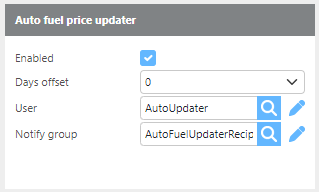
|
Field |
Description |
|
Enabled |
When enabled, the system will attempt to download fuel prices at 6:00 PM on Monday and again on Tuesday for the upcoming week. |
|
Days offset |
Select whether fuel prices should run Monday to Sunday (offset 0) or Tuesday to Monday (offset 1). |
|
User |
Select the Fuel Price Updater user that will be generated to apply fuel price updates. |
|
Notify group |
Select the group of users who will receive a notification when the fuel price updater runs, whether prices were updated successfully or if the update failed. |
Other
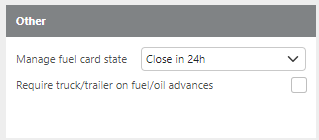
|
Field |
Description |
|
Manage fuel card state |
Select how Ditat should manage the auto-closing of fuel cards when using second-tier fuel card integration. |
|
Require Truck/Trailer on Fuel/Oil Advances |
If checked, advances that include fuel or oil cannot be posted unless a truck or trailer is assigned. |
Manage Fuel Card State Options
|
Option |
Description |
|---|---|
|
Don't Manage |
Ditat will not change the card status without a user manually making the change. |
|
Close When Not Assigned |
Ditat will automatically close the card if the assigned driver is not currently on a trip. |
|
Close in 1 hr |
Ditat will close the card 1 hour after the driver completes a load, if they are not assigned to another trip. |
|
Close in 4 hr |
Ditat will close the card 4 hours after the driver completes a load, if they are not assigned to another trip. |
|
Close in 6 hr |
Ditat will close the card 6 hours after the driver completes a load, if they are not assigned to another trip. |
|
Close in 12 hr |
Ditat will close the card 12 hours after the driver completes a load, if they are not assigned to another trip. |
|
Close in 24 hr |
Ditat will close the card 24 hours after the driver completes a load, if they are not assigned to another trip. |
Accounting Id prefix & size
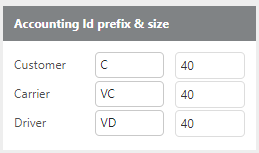
|
Field |
Description |
|
Customer |
Ditat recommends using C as the prefix with a size of 40. If integrating with SAP, the size should be set to 15. |
|
Carrier |
Ditat recommends using VC as the prefix with a size of 40. If integrating with SAP, the size should be set to 15. |
|
Driver |
Ditat recommends using VD as the prefix with a size of 40. If integrating with SAP, the size should be set to 15. |
Note: Prefixes help prevent duplicate IDs between vendors and customers in QuickBooks and SAP. QuickBooks supports IDs up to 40 characters; SAP is limited to 15 characters. Ditat recommends keeping prefixes in place to avoid issues in the future
Detentions
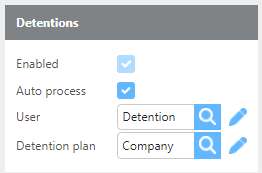
|
Field |
Description |
|
Enabled |
Indicates whether the Detention module is enabled on your account. |
|
Auto process |
Check this box to enable automatic detention processing. |
|
User |
Enter the dedicated Detention user that the system will use to process detentions automatically. |
|
Detention plan |
Select the company-wide detention plan to use by default. Customer-specific plans can be set on the customer profile and will override this default. |
Note: For more information about the Auto-Detention feature, contact sales@ditat.com.
Revenue/Pay Limits
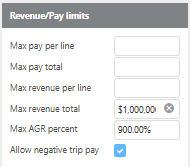
|
Field |
Description |
|
Max Pay Line |
Enter the maximum allowed amount for a single pay line. |
|
Max Pay Total |
Enter the maximum allowed total pay amount. |
|
Max Revenue Line |
Enter the maximum allowed amount for a single revenue line. |
|
Max Revenue Total |
Enter the maximum allowed total revenue amount. |
|
Max AGR Percent |
Enter the maximum percentage by which the Adjusted Revenue on a shipment can exceed the base revenue. |
|
Allow Negative Trip Pay |
If checked, negative pay lines will be allowed on a trip. This option can only be enabled by a Ditat representative. |
Note: Revenue and pay limits are optional and are intended to prevent data entry errors. For example, if the maximum revenue total is set to $12,000 and $120,000 is entered, the system will display a validation error and prevent the amount from being saved.
Note: QuickBooks and some other accounting systems may not support bills with negative amounts. Use the Allow Negative Trip Pay option with caution.
Default Report Forms
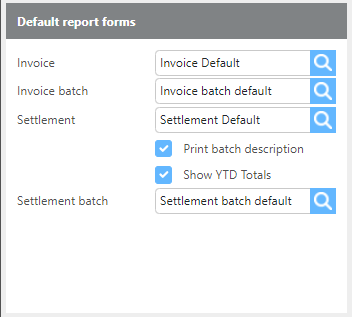
|
Field |
Description |
|
Invoice |
Select the default invoice template for your system. This will be used for all customers unless a different template is specified on the customer profile. |
|
Invoice batch |
Select the default invoice batch cover sheet (bundle cover) for your system. |
|
Settlement |
Select the default settlement template for your system. |
|
Print batch description |
Check this box to print the settlement batch description on each individual settlement. |
|
Show YTD |
Check this box to print year-to-date totals at the top of each settlement. |
|
Settlement bundle |
Select the settlement summary form to use for your system. |
Invoicing Options and Defaults
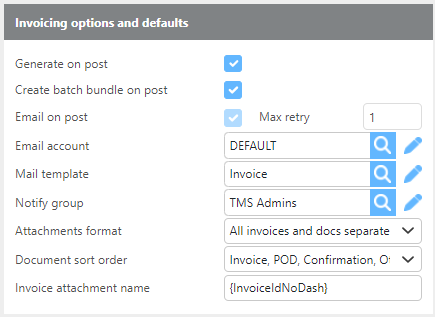
Invoice Attachment Naming Options:
-
{InvoiceId}— Names the attachment using the full invoice ID. Example:IN-0000001774-01 -
{InvoiceIdNoDash}— Names the attachment using the invoice ID without dashes. Example:IN000000177401 -
{InvoiceShort}— Names the attachment using only the digits between the dashes, without the leading "IN-" or trailing "-01". Example:0000001774 -
If left blank, the system will use the account default.
|
Field |
Description |
|
Generate on post |
If checked, the system will generate an invoice and attach it to the shipment when the batch is posted. |
|
Create batch bundle on post |
If checked, the system will generate an invoice bundle and attach it to the batch's Document Management folder when posted. Used for sending bundles to factoring companies. |
|
Email on post |
If checked, the system will email invoices to customers set to bill via email when the batch is posted. Requires Generate on Post to also be enabled. |
|
Max retry |
The number of times the system will retry sending an invoice email if an issue occurs. |
|
Email account |
Select the default email account used to send invoices. This applies to all customers unless a different account is specified on the customer profile. |
|
Mail template |
Select the default email template used to send invoices. This applies to all customers unless a different template is specified on the customer profile. |
|
Notify group |
Select the group of users who will be notified if an invoice emailing error occurs. |
|
Attachments format |
Select how attachments and supporting documents should be applied to outgoing emails. |
|
Document sort order |
Select the order in which supporting documents should be applied when building bundles or email attachments. |
|
Invoice attachment name |
Enter the naming convention tag to use for invoice email attachments. |
Date Control
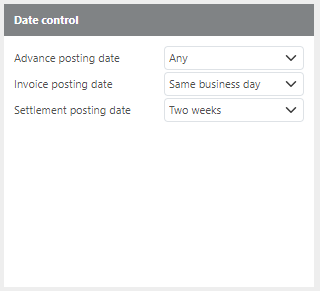
Use Date Control to set how far from the batch's set date the batch can be posted.
Example: Selecting Any allows the batch to be posted on any date. Same Business Day requires posting on the same day the batch date is set. Two Weeks requires the batch to be posted within two weeks (plus or minus) of the set date.
Default Document Management Folders
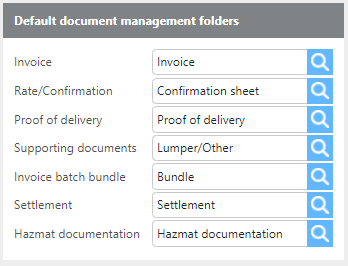
|
Field |
Description |
|
Invoice |
Select the folder used for emailing invoices to customers. |
|
Rate/Confirmation |
Select the folder where confirmation sheets are uploaded. This folder will be used during invoicing. |
|
Proof of delivery |
Select the folder where proof of delivery documents are uploaded. This folder will be used during invoicing. |
|
Supporting documents |
Select the folder where supporting documents are uploaded. This folder will be used during invoicing. |
|
Invoice batch bundle |
Select the folder where invoice batch bundles will be stored. This should be the Bundle folder by default. |
|
Settlement |
Select the folder where settlements will be stored when posted. This should be the Settlement folder by default. |
|
Hazmat documentation |
Select the folder where hazmat documents are uploaded. This folder is used to confirm hazmat documentation has been provided. |
Settlements Options and Defaults
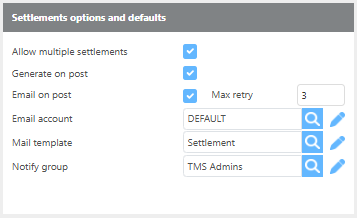
|
Field |
Description |
|
Allow multiple settlements |
If checked, additional pay can be added to an already-settled trip and a secondary settlement can be processed. If unchecked, no additional pay can be added once a trip has been paid. |
|
Generate on post |
If checked, the system will generate a settlement document and attach it to the driver record when the batch is posted. |
|
Email on post |
If checked, the system will email settlements to any drivers or carriers set to receive emailed settlements when the batch is posted. If unchecked, individual settlements will not email manually after posting. |
|
Max retry |
The number of times the system will retry sending a settlement email if an issue occurs. |
|
Mail template |
Select the default email template used to send settlements. |
|
Notify group |
Select the group of users who will be notified if a settlement emailing error occurs. |
Advance Processing Rules
The Advance Processing Rules feature automatically adjusts advance amounts upon importing based on preset rules. Click here for information on how to set up advance processing rules.
