
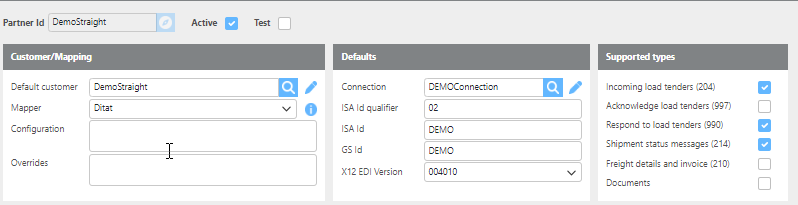
This page is used to set up EDI customer partners.
Set up
|
Field |
Description |
|
Partner Id |
A unique ID for this EDI partner. |
|
Active |
Check or uncheck to indicate whether this partner is active. |
|
Test |
Check this box if this partner is being used for testing purposes. |
|
Default customer |
The Ditat customer this partner should be linked to by default. |
|
Mapper |
The mapper to use for this EDI partner. Click the information bubble next to the mapper to view details about unique behavior for the selected mapper. |
|
Configuration |
Additional configuration details for this EDI partner. |
|
Overrides |
Override details for this EDI partner. |
|
Connection |
The EDI connection to use for this partner. |
|
ISA Id qualifier |
The ISA ID qualifier for this EDI partner. |
|
ISA Id |
The ISA ID for this EDI partner. |
|
GS Id |
The GS ID for this EDI partner. |
|
X12 EDI version |
The X12 EDI version to use for this partner. |
|
Acknowledge load tender (997) |
Check if a 997 acknowledgment should be sent to this partner. |
|
Freight details and invoice (210) |
Check if 210 invoices should be sent to this partner. |
|
Incoming load tenders (204) |
Check if this partner will be sending 204 load tenders to you. |
|
Respond to load tenders (990) |
Check if 990 responses should be sent to this partner. |
|
Shipment status messages (214) |
Check if 214 shipment status messages should be sent to this partner. |
|
Documents |
Check if invoices or supporting documents should be uploaded for this partner. |
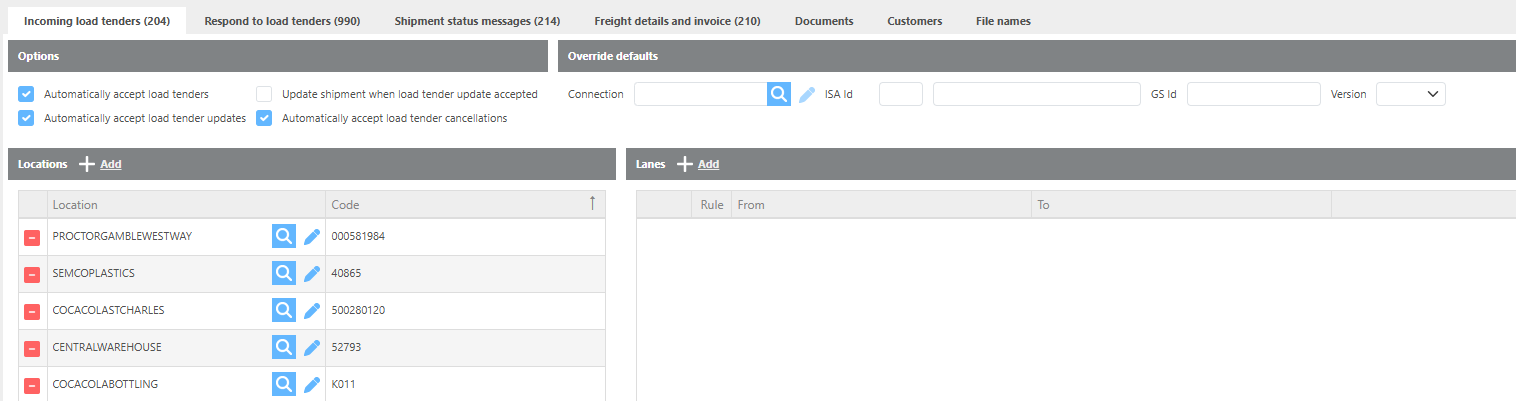
Incoming Load Tenders (204)
|
Field |
Description |
|
Connection |
Select a connection to override the main connection for receiving load tenders, if needed. |
|
ISA Id GS Id |
Enter the ISA ID and GS ID to override the main connection for receiving load tenders, if needed. |
|
Version |
Select the version to use if overriding the version for receiving load tenders. |
|
Atomically accept load tenders |
When checked, newly received load tenders will be automatically accepted. This only applies to newly received tenders. |
|
Atomically accept load tender updates |
When checked, received load tender updates will be automatically accepted. |
|
Update shipment when load tender update is accepted |
When checked, accepted load tender updates will automatically update the corresponding shipment. |
|
Automatically accept load tender cancellations |
When checked, load tender cancellations will be automatically accepted. |
|
Location |
Click + Add and select a Ditat location to link it to the EDI partner's location code. |
|
Code |
The EDI partners location code, used to link to the selected Ditat location. |
|
Lanes |
Click + Add to create lanes that you do not want to accept or want to warn your team about when accepting new load tenders. |
Locations can also be mapped from the Locations tab in Ditat. Click here for information on that screen.
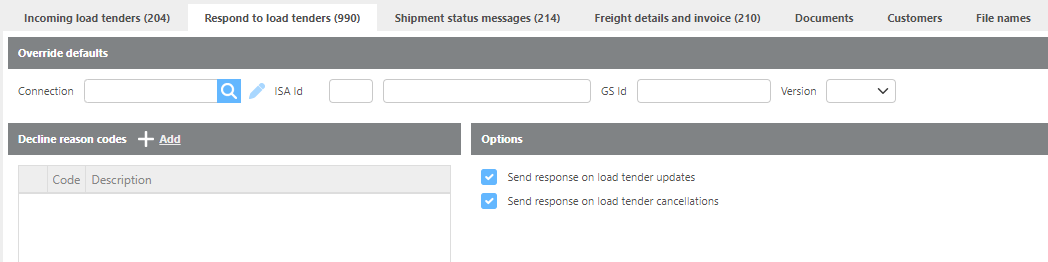
Respond to load tenders (990)
|
Field |
Description |
|
Connection |
Select a connection to override the main connection for responding to load tenders, if needed. |
|
ISA Id GS Id |
Enter the ISA ID and GS ID to override the main connection for responding to load tenders, if needed. |
|
Version |
Select the version to use if overriding the connection for responding to load tenders. |
|
Code |
If needed, click + Add to enter the list of codes to use for declining load tenders. |
|
Description |
If needed, enter the description for declining load tenders. |
|
Send response on load tender updates |
When checked, a 990 will be sent when a load tender update is accepted. |
|
Send response on load tender cancellations |
When checked, a 990 will be sent when a load tender cancellation is accepted. |
990 files are required by most EDI Partners that send 204’s
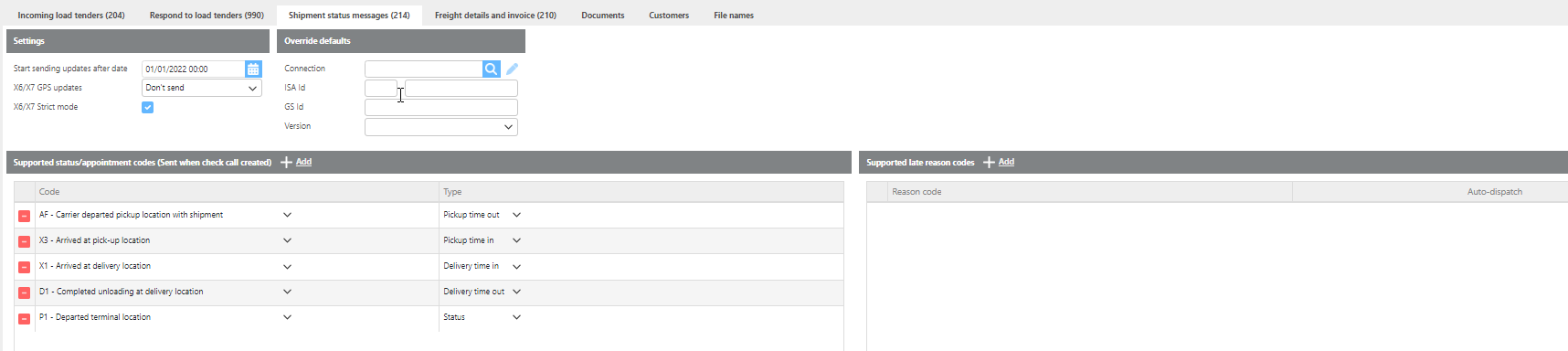
Shipment status messages (214)
|
Field |
Description |
|
Start sending updates after date |
The date from which status updates will begin being sent to this partner. |
|
X6/X7 GPS updates |
The frequency at which X6/X7 GPS updates are sent to this partner, if they have been added as supported statuses. |
|
X6/ X7 Strict mode |
When checked, GPS updates are sent only when the load is actively moving based on check call data. When unchecked, updates are sent for the duration the shipment is enroute. On split loads, if the load is sitting at the split point between legs, pings will be sent using the last known GPS location. |
|
Connection |
Select a connection to override the main connection for sending shipment statuses, if needed. |
|
ISA Id |
Enter the ISA ID to override the main connection for sending shipment statuses, if needed. |
|
GS Id |
Enter the GS ID to override the main connection for sending shipment statuses, if needed. |
|
Version |
Select the version to override the main settings for sending shipment statuses, if needed. |
|
Supported status/appointment codes |
Select the codes to use for status and check call updates. |
|
Supported late reason codes |
Select the codes to use for late check calls. Check the Auto Dispatch checkbox inext to the status that auto dispatch should use for late check calls. |
X6/ X7 Strict mode
When strict mode is checked, Ditat will send 214’s X6 only when the load is moving according to check calls.
When strict mode is unchecked, Ditat will send as long as the Shipment is enroute. If a load is split and it is sitting at the split point until the next leg starts, pings will be sent with the last known GPS location.
Freight details and invoice (210)
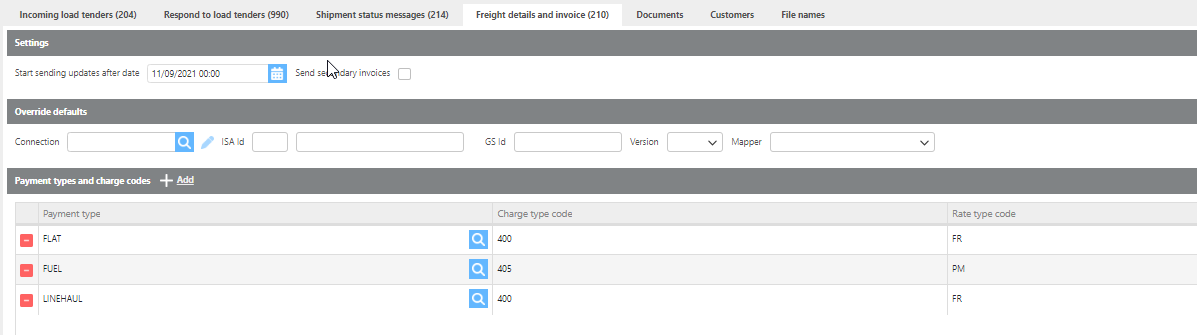
Note: Charge codes are unique per EDI partner. Rate type codes are common across most partners — typical values are FR (Flat Rate) and PM (Per Mile).
|
Field |
Description |
|
Start sending invoiced after date |
The date from which invoices will begin being sent to this partner. |
|
Connection |
Select a connection to override the main connection for sending EDI invoices, if needed. |
|
ISA Id |
Enter the ISA ID to override the main connection for sending EDI invoices, if needed. |
|
GS Id |
Enter the GS ID to override the main connection for sending EDI invoices, if needed. |
|
Version |
Select the version to override the main settings for sending shipment statuses, if needed. |
|
Mapper |
Select a different mapper than the customer default for sending 210 invoices, if needed. |
|
Payment type |
Select the Ditat payment type to link to an EDI charge code and type. |
|
Charge type code |
The charge code to send for the selected payment type. |
|
Rate type code |
The rate type code to send for the selected payment type. |
Documents
|
Field |
Description |
|
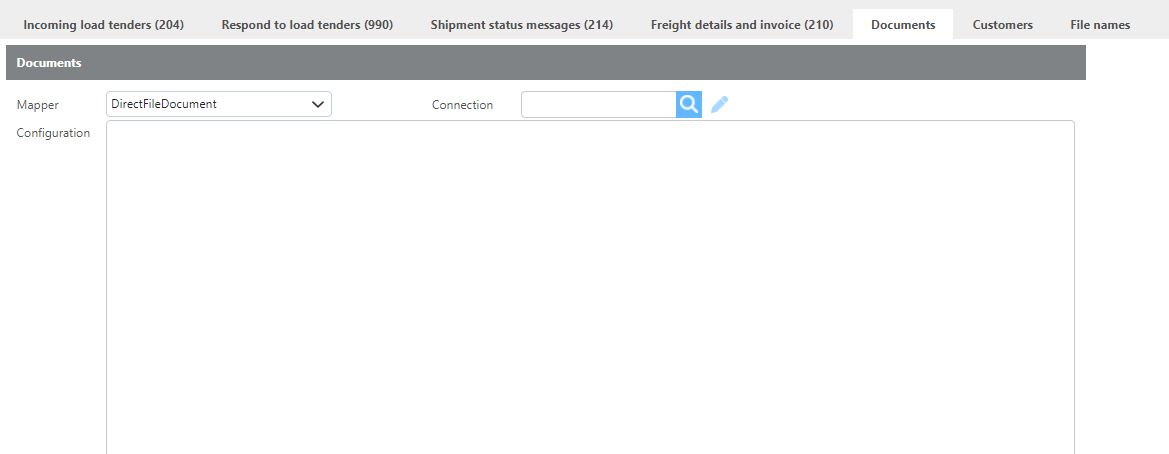
Mapper |
Select the mapper to use for uploading documents for this EDI partner. |
|
Configuration |
Configuration details for uploading documents for this EDI partner. |
Customers
Multiple customers can be linked to a single EDI partner. This is commonly used by aggregator partners such as Uber Freight (Transplace), E2Open (BluJay), and BlueYonder, where customer codes determine which customer a load tender belongs to.

|
Field |
Description |
|
Customer |
Select the Ditat customer to link to this partner. |
|
Code |
The EDI code that identifies this customer on load tenders from this partner. |
File names
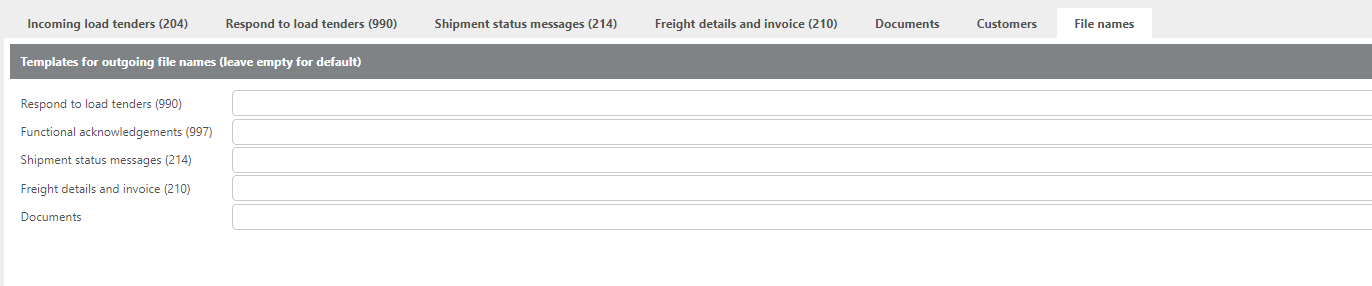
Override settings on this tab should be left blank unless you need to change the file naming convention from the default for a specific file type.
|
Field |
Description |
|
Respond to load tenders (990) |
Custom file naming convention for 990 response files. |
|
Functional acknowledgments (997) |
Custom file naming convention for 997 acknowledgment files. |
|
Shipment status messages (214) |
Custom file naming convention for 214 status files. |
|
Freight details and invoice (210) |
Custom file naming convention for 210 invoice files.
|
Available tags for EDI file names:
|
Tag |
Description |
|---|---|
|
{FunctionalIdentifierCode} |
The EDI type code: |
|
{InterchangeKey} |
A unique interchange number. |
|
{yyyyMMddHHmmss} |
A UTC timestamp in year-month-day-hour-minute-second format. |
|
{yyyyMMdd-HHmmssfff} |
A UTC timestamp with milliseconds. |
EDI Document File Names
If no custom name is specified, the system will generate a number automatically. Using supported tags and file extensions is strongly recommended to create file names that are compatible with the document receiver.
|
Tag |
Description |
|---|---|
|
{ShipmentId} |
The full shipment number. |
|
{InvoiceId} |
The shipment number with |
|
{ProNumber} |
The shipment number with the leading |
|
{CustomerCode3} |
The first 3 characters of the customer code from the Customers tab on the EDI partner setup. |
|
{ReferenceId1} |
Reference Field 1 from the shipment. |
|
{ReferenceId2} |
Reference Field 2 from the shipment. |
|
{ReferenceId3} |
Reference Field 3 from the shipment. |
|
{ReferenceId4} |
Reference Field 4 from the shipment. |
|
{ReferenceId5} |
Reference Field 5 from the shipment. |
|
{SCACCode} |
The company's SCAC code. |
|
{DocType} |
The document type in full: |
|
{DocTypeU3} |
The document type abbreviated to 3 characters: |
|
{yyyyMMddHHmm} |
A timestamp in year-month-day-hour-minute format. |
|
{yyyyMMdd-HHmmssfff} |
A timestamp with milliseconds. |
|
{DocumentOrdinal} |
A sequential number for documents when more than one file comes from the same folder. |