
Navigation: Rate & Pay → Process Advances
Click here for information on how to use a data entry window.
Process Advances is used to create and send batches of advances through the system for payment.
Toolbar.

|
Button |
Description |
|
New Batch |
Creates a new batch using advances that are waiting in the queue. |
|
Add Advances |
Pulls any remaining queued advances into the current batch. |
|
Post |
Submits the batch of advances for payment. |
|
Reverse |
Reverses the posting of a batch so it can be edited. |
|
Delete |
Deletes the batch and returns the advances to the queue to be added to a new batch. |
General
|
Field |
Description |
|
Batch Id |
Automatically generated by the system when a new batch is created. You can type an existing Batch ID into this field to open a previously created batch. |
|
Posted |
Checked if this batch has been posted. |
|
Created by |
Displays the user who created this batch. |
|
Pay by |
Displays the company account being used for this batch |
|
Date |
The date the batch was created. |
Totals/Description
|
Field |
Description |
|
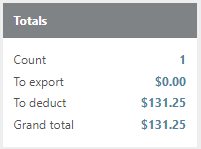
Count |
The number of advances included in this batch. |
|
To export |
The total amount to be exported to the accounting software. |
|
To deduct |
The total amount to be deducted from the driver. |
|
Grand total |
The total monetary value of all advances in this batch. |
|
Description |
Details about the advance batch, including company, account, type, and date. |
Understanding the Batch Description
The description field provides information about the source and type of advances in the batch. For example, a typical EFS fuel card batch description looks like this:
Fuel card advances. Imported from EFS file: EFS_999999_110_20190527.dat
This breaks down as follows: the transaction is imported from EFS, the account number is 999999, the transaction type is Fuel Cards (110), and the advance was from the date 05-27-2019.
Note: EFS file types are 110 for fuel card advances and 150 for money code/check advances.
Advances

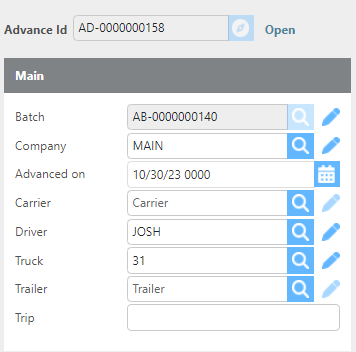
This section displays all advances included in the batch for review. Use Select All or check individual boxes next to Advance IDs to select advances for removal from the batch. Click Refresh to update any advances you have edited using the pencil icon next to the Advance ID.

|
Field |
Description |
|
Reference ID columns |
Auto-filled with information from the cash advance provider. |
|
Driver / Carrier |
Must be completed for advances to be deducted from the correct party. |
|
Truck / Trailer |
Must be completed to track advances to assets for IFTA and other reporting purposes. |
|
Items |
Indicates how many individual charges are included in that advance. |
|
To Export |
The amount that will be sent to accounting for this advance. |
|
To Deduct |
The amount that will be deducted from the driver or carrier for this |
Trip Linking
When advances are imported, the system will automatically attempt to link each advance to the trip the payee was on at the time the advance was given. When the batch is posted, the system will recheck these trip links to ensure they are still accurate. The linked trip will then appear as the suggested trip on the Apply Advances screen.
Tip: Before posting, verify that all advances are correctly linked to a driver or carrier. If a payee was not on a trip at the time of the advance, no trip will be suggested on the Apply Advances screen — these will need to be manually assigned to a trip or set up as a deduction.
Posting
Once all advances in the batch are linked to a driver or carrier and ready to process, click Post to submit the batch for payment.

Tip: Before posting, review the To Export and To Deduct totals to confirm they are correct. Any advances with errors can be edited using the pencil icon before posting.