The Report Manager provides access to all reports available in the Ditat TMS, organized into the following sections:
Report Parameters
Most Ditat reports include multiple parameters that allow you to control the data displayed. A single report can be run in many different ways depending on the parameters selected.
Parameter Types
|
Type |
Description |
|
Dates
|
Filter report data by a selected date range. Use only the date range you need — a wider date range will return more data, while using multiple date ranges may exclude data that should be included in your results. |
|
Text boxes
|
Enter a string of text to filter the report. Common examples include cities, shipment numbers on audit reports, and fuel card numbers. You do not need to enter the full value — the system will return all records that contain the string you enter. |
|
Look up
|
Select a specific record to report on. Lookups are commonly used to filter by a specific truck, trailer, driver, or user. |
|
Drop down
|
Select a value from a predefined list. Drop-downs are commonly used for selecting states, driver types, load types, and similar categories. |
|
Custom Groups
|
Filter the report by one or more custom groups. Click the pencil icon next to the All Groups box to select which custom groups to include. Custom groups are commonly used for truck, trailer, driver, and customer groupings and can be managed on the Custom Groups screen in the System module. Click here for more information on custom groups. |





Scheduled reports
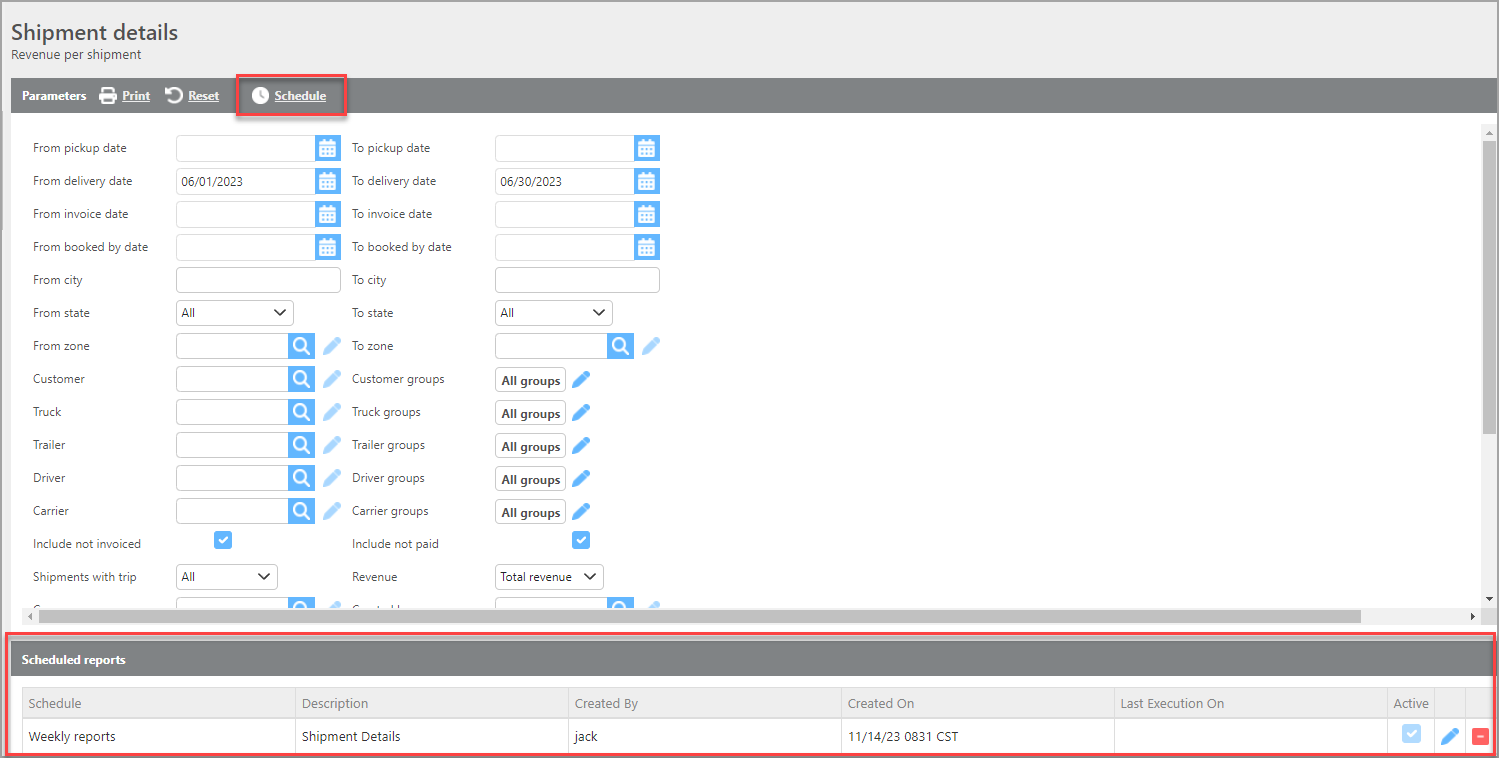
Reports can be scheduled to run automatically using the Scheduled Report function at the top of the report parameters page.
Note: The ability to schedule reports can be restricted by user group. Users will need the scheduled reports permission enabled on their user group before they can use this feature.
To schedule a report, use the Schedule Report box at the top of the parameters page. Once a report is scheduled, it will appear in a list at the bottom of the screen, where you can also edit the parameters used for each scheduled run.