
To access: System → Companies
Click here for information on how to use a data entry window.
The Ditat TMS supports a multi-company setup for billing and paying purposes, allowing you to manage multiple companies within a single account.
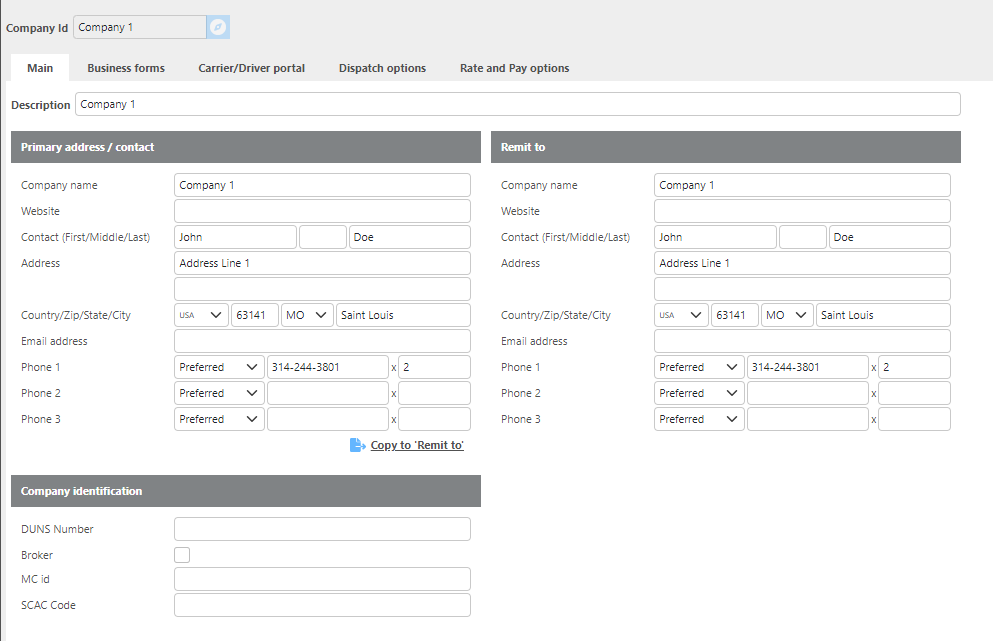
|
Field |
Description |
|
Company Id |
A unique ID of up to 25 characters. This ID should be short and easily identifiable Click here for information on how to use the Record ID field. |
|
Description |
A brief description of the company. |
|
Company Name |
The full legal name of the company. |
|
Website |
The company's website address. Must be in |
|
Contact (First/Middle/Last) |
The name of the primary contact at the company. |
|
Address |
The company's street address. |
|
Country/Zip/State/City |
Enter the ZIP code to automatically populate the remaining location fields. |
|
Email address |
Must be unique and valid. Valid email addresses enable Ditat's email integration and improve overall system functionality. |
|
Phone 1 |
The company's primary phone number. |
|
Copy to Remit To |
Use this option if the remit-to address is the same as the primary company information. |
|
DUNS Number |
The company's Dun & Bradstreet DUNS number. |
|
Broker |
Check this box if the company is a brokerage. When checked, an MC ID will be required. |
|
MC Id |
The company's Motor Carrier identification number. Required when Broker is checked. |
Business Forms
The Business Forms section allows you to customize the footer text and logo that appear on invoices, confirmation sheets, and other business documents.
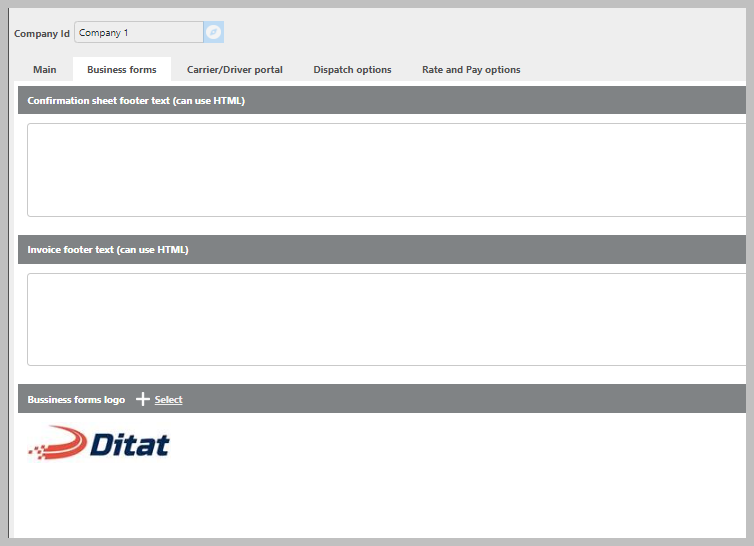
The following tags can be used in confirmation sheet footer text: {ReferenceId1} {ReferenceId2} {ReferenceId3} {ReferenceId4} {ReferenceId5}
|
Field |
Description |
|
Confirmation sheet footer text |
Enter text in XML format to display at the bottom of confirmation sheets. If left blank, Ditat will use the default footer text. |
|
Invoice footer text |
Enter text in XML format to display at the bottom of invoices. If left blank, Ditat will use the default footer text. |
|
Business forms logo |
Upload your company logo to display on invoices and other business documents. The recommended resolution is 400 x 200 pixels with a white |
Carrier / Driver Portal
|
Field |
Description |
|
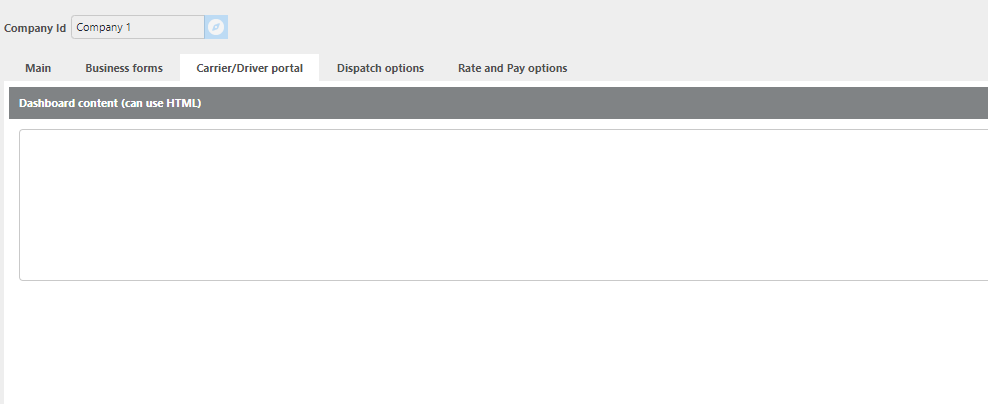
Dashboard Content |
Enter the content that will be displayed on the dashboard for all driver and carrier portal users. This tab will not appear if your account does not have the Carrier/Driver Portal feature enabled. |
Document Management
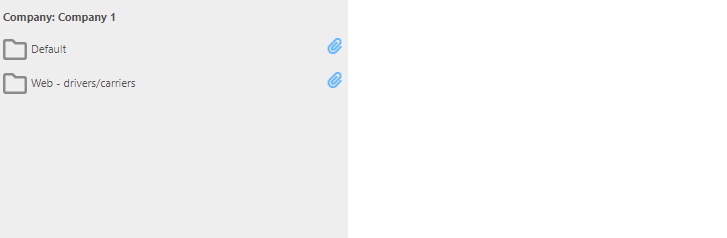
Portal Document Management
Documents can be uploaded to the Web – Drivers/Carriers folder to make them accessible to users through the web portal.
Dispatch Options
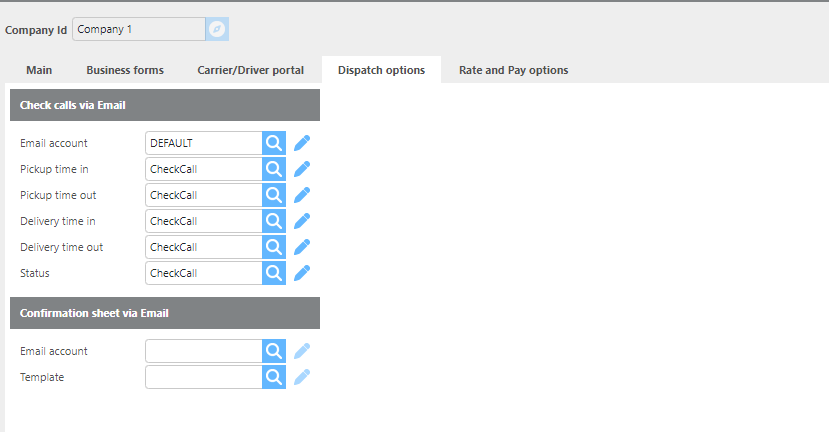
The Dispatch Options section allows you to configure which email account and templates this company uses for check call and confirmation sheet emails. These settings only need to be configured here if they differ from the defaults set in the Dispatch Setup Options.
|
Field |
Description |
|
Check calls via Email Email account |
The email account this company will use to send check call emails. |
|
Pickup time in |
The mail template used for pickup time-in notifications. |
|
Pickup time out |
The mail template used for pickup time-out notifications. |
|
Delivery time in |
The mail template used for delivery time-in notifications. |
|
Delivery time out |
The mail template used for delivery time-out notifications. |
|
Status |
The mail template used for shipment status update notifications. |
|
Confirmation sheet via Email Email accounts |
The email account this company will use to send confirmation sheet emails. |
|
Template |
The mail template this company will use for confirmation sheets. |
Check calls via email
In this section, you can choose which account you would send check call emails from for this company. (This is only necessary if different than what is set in the dispatch setup options as your defaults) You can also choose which email templates to use for each check call type
Rate and Pay Options
Rate and Pay options
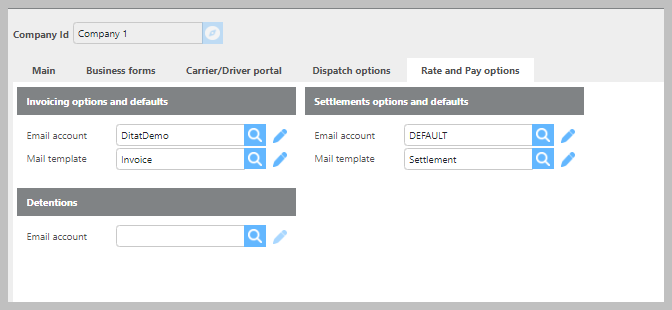
The Rate and Pay Options section allows you to configure the email account and mail templates used for this company's invoicing, settlements, and detention emails. These settings only need to be configured here if they differ from the defaults set in the Rate & Pay Setup Options.
|
Field |
Description |
|
|
Invoice Email account |
The email account used to send invoices for this company. This applies to all customers billed from this company unless overridden on the individual customer's profile. |
|
|
Invoice Mail Template |
The mail template used when sending invoices for this company. This applies to all customers billed from this company unless overridden on the individual customer's profile. |
|
|
Settlement Email account |
The email account used to send settlements for this company. |
|
|
Settlement Mail Template |
The mail template used when sending settlements for this company.The email account used to send detention emails for this company. |
|
|
Detentions Email account |
The email account used to send detention emails for this company. |
|