
The Document Management screen can be accessed by clicking the Document Management button on the toolbar of any data entry screen.
Example: To attach a document to a trailer record, navigate to the desired trailer, then click the Document Management button on the toolbar.
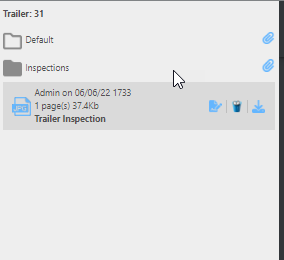
Document Explorer (Left Panel)
The left panel displays all folders and documents associated with the current record.
To add documents to a folder, either drag and drop a file into the folder or click the Paperclip icon to browse your computer for a file to upload.
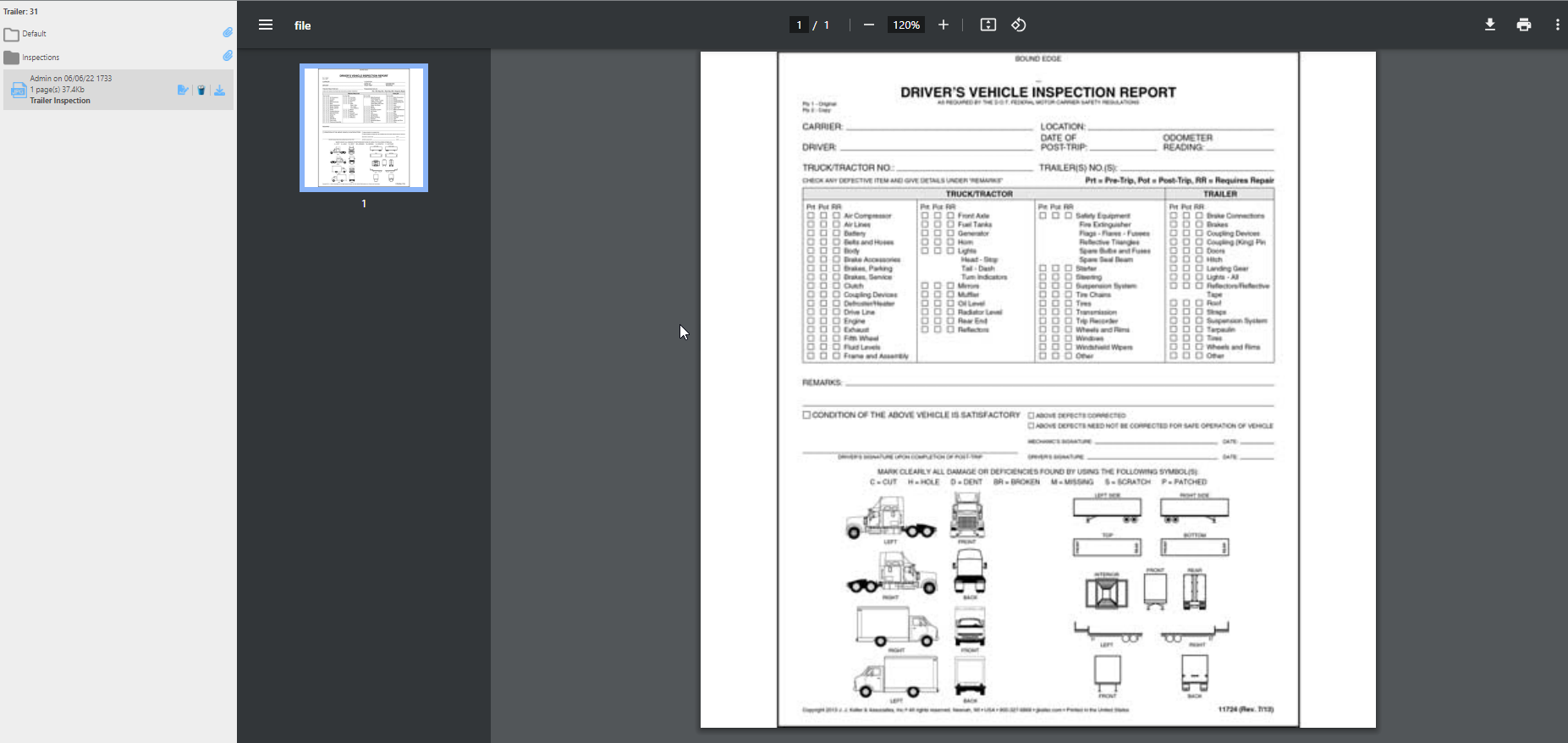
Right: Document Preview
Document Preview (Right Panel)
The right panel displays a preview of the selected document. Preview is supported for TIFF, JPG, and PDF files. From the preview panel you can print the document, zoom in or out, and navigate through multiple pages.
Document Actions
|
Image |
Description |

|
Renames the selected file. |

|
Deletes the selected file. |

|
Downloads the selected file. |
Note: The Move Document button has been removed. To move a document between folders, click and drag it to the desired folder.
File Size Limits
Ditat enforces the following file size limits for document uploads and attachments:
-
Upload limit: 25 MB
-
Attachment limit: 5 MB
The following rules apply when a file is processed:
-
If the file is not a PDF and is under 5 MB, it will be attached without any changes.
-
If the file is a PDF, the system will check the number of pages. If the page size exceeds 300 KB, the system will convert the pages to black and white to reduce file size. If the converted file is under 5 MB, it will be attached successfully.
Tip: When uploading images, use JPEG format to prevent the system from converting the file during the attachment process.