To access: Mobile → Maintain Devices
Click here for information on how to use a data entry window.
Use this screen to set up and manage mobile devices for your drivers and mechanics.
View Log – A unique toolbar option on this screen. Clicking it opens a separate tab containing a log of the driver's activities.
Maintain Devices
|
Field |
Description |
|
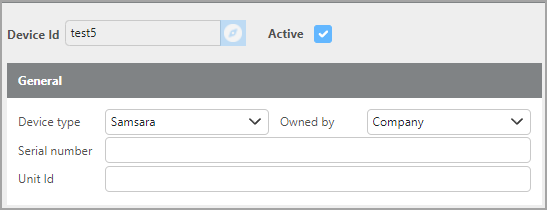
Device Id |
A unique ID of up to 25 characters for this device record. Click here for information on how to use the Record ID field. We recommend using the device's phone number for company-issued devices, or a combination of the owner's name and a prefix for driver-owned devices. |
|
Active |
When checked, the device user is permitted to log in. When unchecked, the device will not be able to connect to the server, and the user will be unable to log in. |
|
Device type |
Select the type of device this will be. For Driver mobile apps, this will be Android (Google) or iOS (Apple). If setting up a tracking device select your provider from the list. |
|
Owned by |
Specify whether the device is company-owned or a personal device. |
|
Serial number |
The device's unique serial number. Must be entered exactly as it appears on the device, including any hyphens. See Finding the Serial Number below. |
|
Show Advanced Options |
When checked, the Advanced Options section will expand below. |
Advanced Options
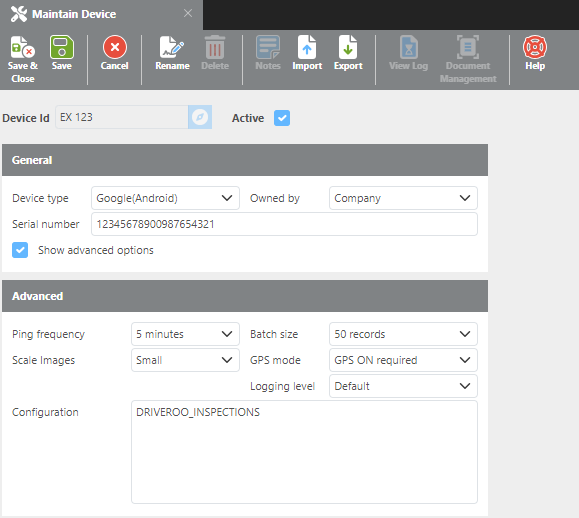
Advanced options apply to Android and iOS devices only.
|
Field |
Description |
|
Ping Frequency |
How often the device sends a GPS ping to the server. More frequent pings consume more battery and data. A ping frequency of 15 minutes is recommended for long-haul trucking operations. |
|
Batch Size |
The amount of data the device can upload to the server at one time. A batch size of 50 is recommended as a starting point. This setting is most relevant when a device collects data while offline — the batch size controls how much data is sent at once to avoid overloading the device and server. |
|
Scale Images |
The size to which images are scaled before being sent from the device. Medium is recommended, as smaller images use less data while still maintaining acceptable quality for most purposes. |
|
GPS mode |
The GPS mode for the device. Always On is recommended for company-owned devices. For personal (driver-owned) devices, set to Can Turn Off. |
|
Logging Level |
Controls the detail level of device logging. Should remain set to Default unless you are actively troubleshooting the device. |
|
Configuration |
Used for additional device configurations. See Configuration Notes below. |
Finding the Serial Number
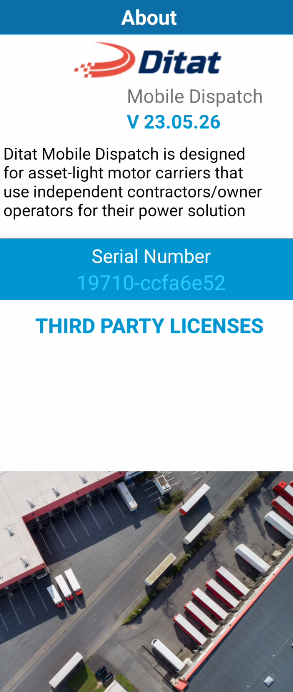
The serial number can be found on the device's About screen within the Ditat Mobile Dispatch app:
-
Open the Ditat Mobile Dispatch app.
-
Tap the Menu button on the title bar.
-
Select About from the menu.
-
Enter the serial number exactly as displayed, including any hyphens.
Note: On iOS devices, the serial number used by Ditat will change if the user deletes and reinstalls the Ditat Mobile Dispatch application.
Configuration Notes
For Driveroo trailer inspections (Android only), enter the following text in the Configuration field. This will redirect drivers to the Driveroo app when completing an inspection:
DRIVEROO_INSPECTIONS