
If you have purchased Android phones or tablets for your drivers, some initial setup is required before distributing them. The Ditat TMS allows administrators to lock devices to smaller data plans, prevent unauthorized app installations, and restrict devices to Ditat-only use.
Initial Setup of the Android Device
Enable Unknown Sources
Enabling Unknown Sources allows Ditat Mobile Dispatch to update itself automatically when new versions are available.
Settings → Security → Unknown Sources
Set Up a Google Account
Each device requires its own separate Google account.
Settings → Accounts & Sync → Add Account
Tip: We recommend naming Google accounts using the following format:
<company>+<phone number>@gmail.comExample: If your company is "CompanyA" and the device's phone number is 555-555-5555, the email would be
CompanyA555@gmail.comA consistent naming approach makes it easier to manage devices when resetting or reissuing them. Account credentials can be stored as a note on the device record in the Ditat TMS.
Configure Backup Options
Google can automatically back up app data, which can help restore data if a device is lost or stolen. However, since Ditat stores all data on its own servers, additional backup is not necessary for Ditat-only devices.
Settings → Backup & Reset → Back Up My Data
Tip: Disable automatic backup on company devices used exclusively for Ditat. This reduces unnecessary data usage.
Sync Date and Time Automatically
Ensure the device always displays the correct time by enabling automatic date, time, and time zone sync:
Settings → Date & Time → Automatic Date & Time
Settings → Date & Time → Automatic Time Zone
Enable GPS Tracking
Settings → Location Services → GPS Satellites – Enable this to allow GPS tracking.
Managing Sounds and Notifications
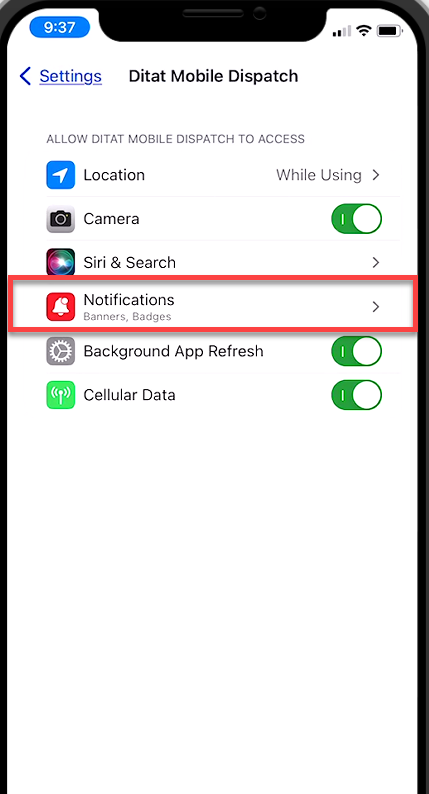
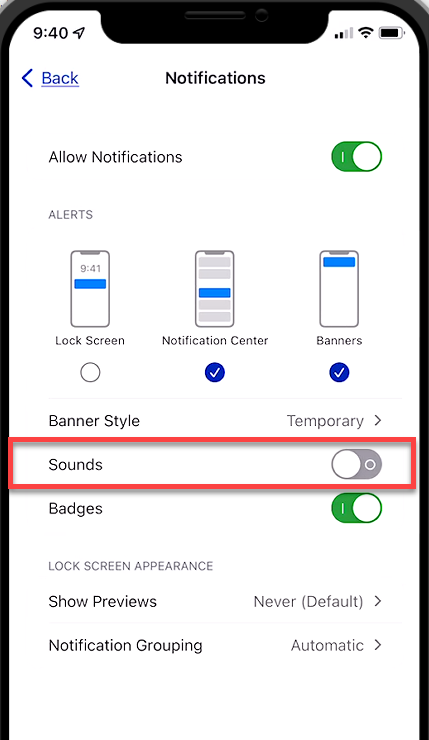
iPhone
Phone Settings → Ditat Application → Sounds – Toggle off to disable sounds.
Android
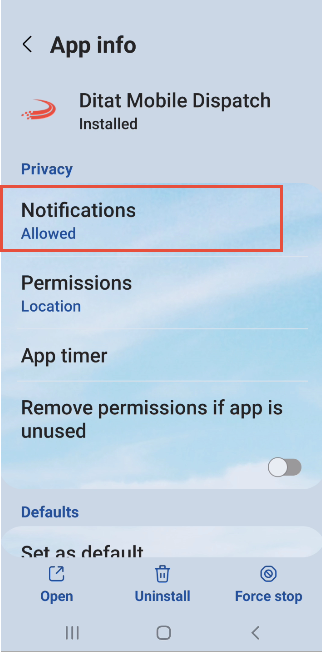
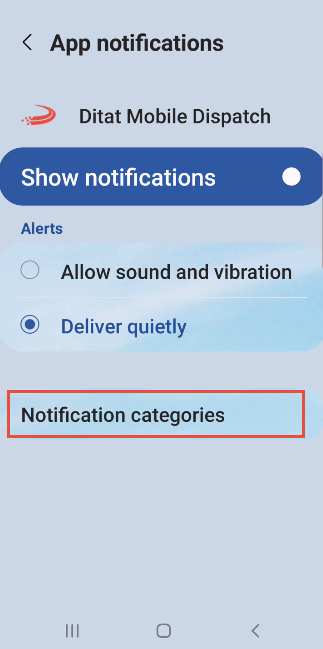
Phone Settings → Apps → Ditat Application → Sounds – Toggle off, then follow these steps to configure notification behavior:
-
On the App Info screen, select Notifications.
-
On the App Notifications screen, select Notification Categories
-
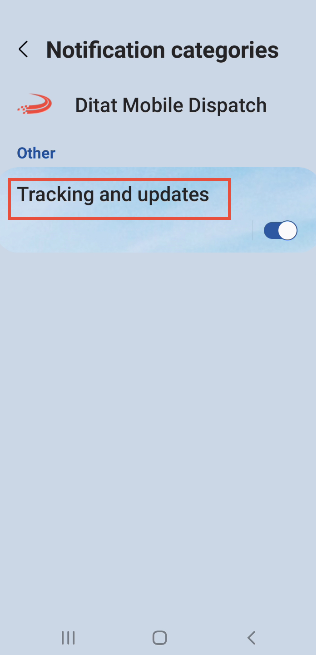
On the Notification Categories screen, leave Tracking and Updates enabled and tap to open it.
-
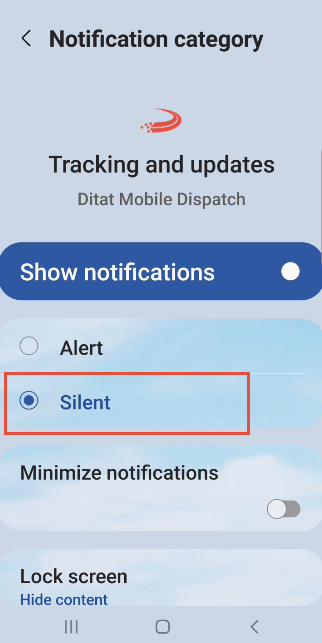
On the Notification Category screen, select Silent.
Voice Notifications
The "New Load Assigned" audio notification is supported on Android devices but not on iOS. To silence this notification on Android, use the Deliver Silently setting described above.
Managing Default Map App
When a user taps the Map button or an address in the mobile app, they will be prompted to select a mapping app. If the user selects Always Use, this prompt will not appear again.
To restore the prompt and reset the default mapping app:
-
Open Settings → Apps.
-
Select Choose Default Apps → Opening Links.
-
Locate the mapping app currently set as the default.
-
Select Clear Default Preferences.
Once cleared, the app will prompt the user to select a mapping app the next time they open a map or address link.