
To access: System → Messaging, or click Messaging on the Quick Access Toolbar.
Messaging Window Layout
|
Field |
Description |
|---|---|

|
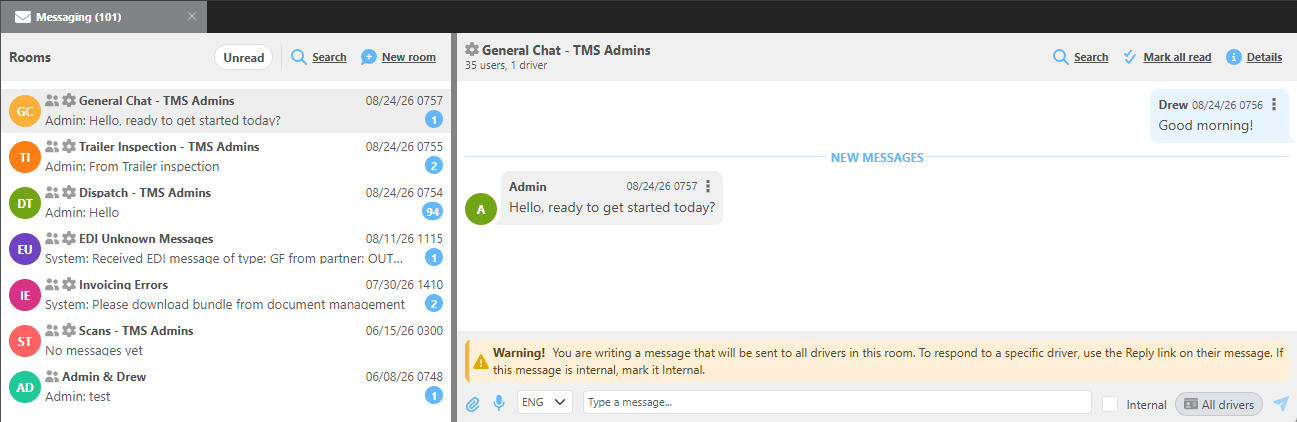
Select Unread to display only rooms with unread messages. |

|
Search will check room id and messages for matching text; similar to the Google CTRL + F function. |

|
Use this button to create a new messaging room. Rooms can be used for groups of TMS Users, Drivers, or Individual Users & Individual Drivers. |
|
When a room is open, this button will mark all messages as read. |

|
Details will display all users and drivers included in a room. Participants can be added or removed here. Details will also allow users to leave a room. |

|
Use this button to attach images and documents. |

|
Use this button for talk to text. |

|
Check this box for internal messages. Internal message will only be sent to TMS users and exclude drivers if included in the room. |

|
When set to all drivers, messages sent in a room with drivers will go to all drivers. Press this button to select specific drivers. |
|
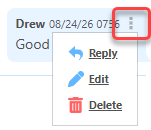
Press the three dots on a message to Reply directly, Edit the message, or Delete the message. |
Message Details

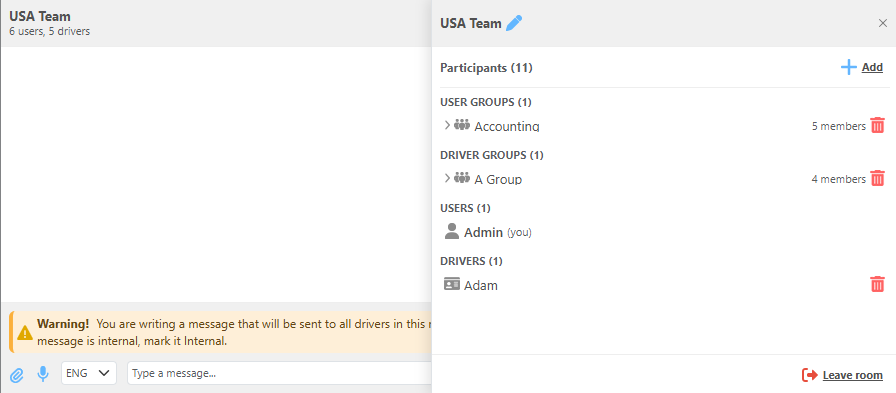
Use message details to view and edit participants of a room. Users can also leave a room.