Enabling
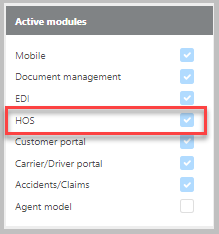
To use Hours of Service reporting in Ditat, the HOS module must be enabled. For more information on enabling modules, see Set Up System Options.
Viewing HOS from the Driver Profile
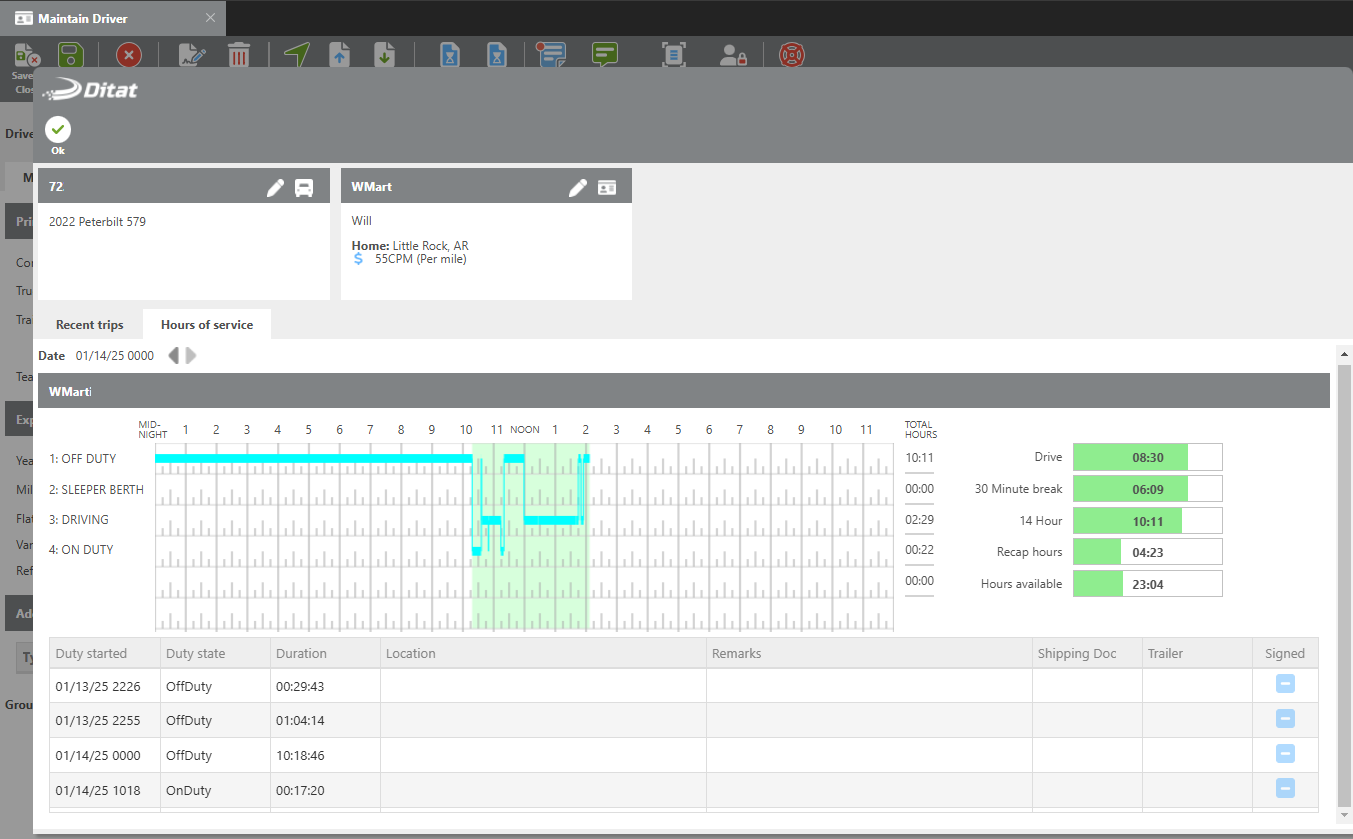
HOS data can be viewed directly from a driver's profile by selecting the Hours of Service tab.

Viewing HOS from the Dispatch Board
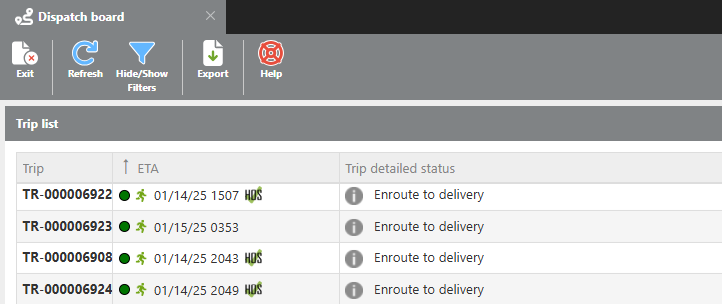
HOS information is also accessible from the Dispatch Board. When an HOS icon appears in the ETA field, it indicates that the ETA has been calculated using the driver's available hours of service. If no HOS icon is present, an hours of service reading is unavailable and the ETA shown is approximate.
ETA Status Icons
The ETA icon uses color to indicate the driver's on-time status at a glance:
|
Color |
Meaning |
|---|---|
|
🟢 Green |
The driver is tracking on time. |
|
🟡 Yellow |
The driver may or may not arrive on time. |
|
🔴 Red |
The driver is expected to be late. |