
Note: All integrations must be enabled by Ditat before use. For details and pricing, contact sales@ditat.com.
GeoTab
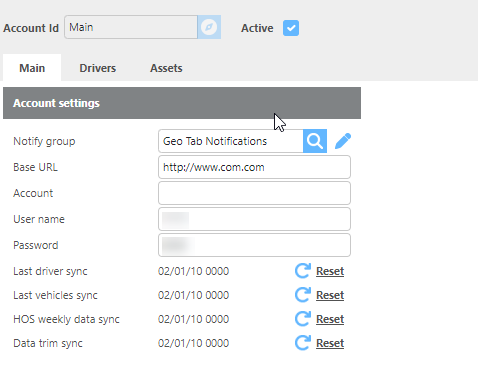
|
Field |
Description |
|
Active |
Check this box to enable the GeoTab integration. |
|
Notify Group |
Select the group that will be notified if an error occurs. |
|
Base URL |
Enter the base URL provided for this integration. |
|
Account |
Enter the account ID. |
|
Username |
Enter the username for this integration. |
|
Password |
Enter the password for this integration. |
|
Last driver sync |
Click Reset to initiate a driver sync. |
|
Fleet last sync |
Click Reset to initiate a fleet sync. |
|
Asset last sync |
Click Reset to initiate an asset sync. |
Note: Driver HOS must be verified in GeoTab before it will update in Ditat.
Click here for more information about HOS.
GeoTab - Drivers
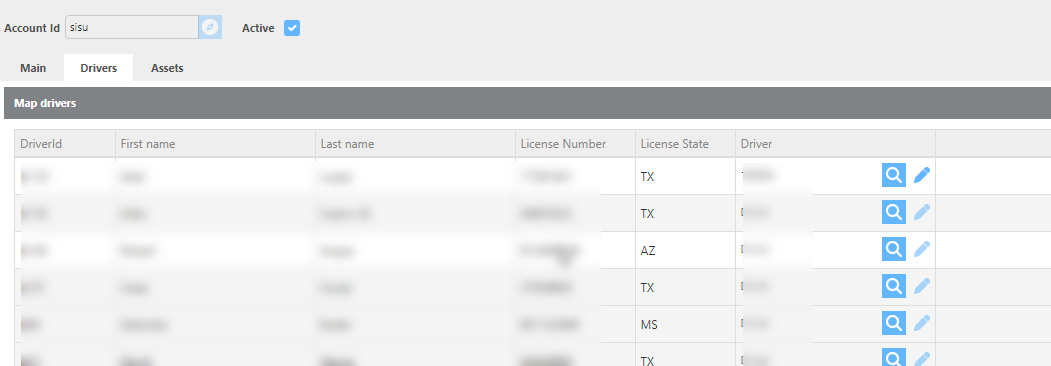
|
Field |
Description |
|
Driver Id |
The driver ID pulled from GeoTab during sync. |
|
First name |
The driver's first name received from GeoTab. |
|
Last name |
The driver's last name received from GeoTab. |
|
License number |
The driver's license number received from GeoTab. If this matches a driver in Ditat, HOS will be linked automatically. |
|
License state |
The license state received from GeoTab. |
|
Driver |
Select the Ditat driver to link to this GeoTab record for HOS. If criteria-based matching applies, this may be auto-selected. |
For more information about HOS click here.
GeoTab - Assets
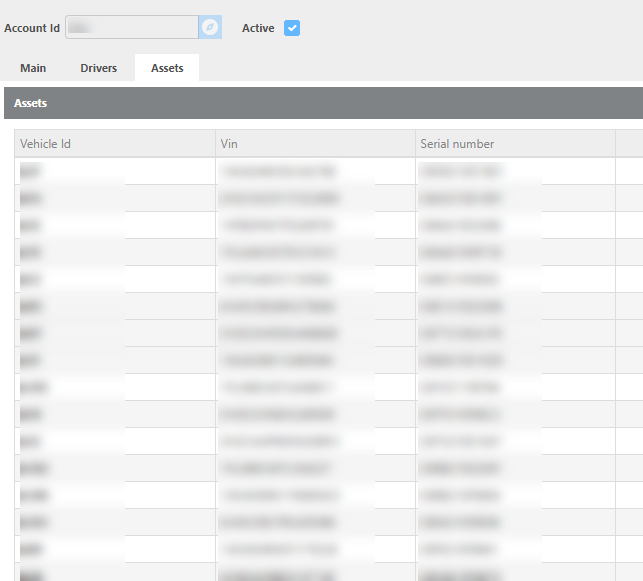
|
Field |
Description |
|
Vehicle Id |
The vehicle ID pulled from GeoTab. This number must be added to the mobile device in Ditat to enable asset tracking. |
|
Vin |
The VIN number from GeoTab for this device. |
|
Serial number |
The serial number from GeoTab for this device. |
GEOTab - Main
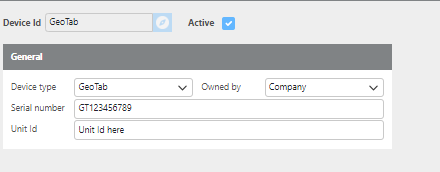
|
Field |
Description |
|
Device Id |
The device ID that will appear on lookup screens. |
|
Device type |
Set this field to GeoTab. |
|
Owned by |
Select Company if the device is company-owned. |
|
Serial Number |
Enter the serial number from the device. |
|
Unit Id |
Enter the Vehicle Name exactly as it appears in GeoTab. This is how Ditat links the device. |