
Navigation: Dispatch → Carriers
Click here for information on how to use a data entry window.
Carrier ID and Status
|
Field |
Description |
|
Carrier Id |
Can be up to 25 characters and must be unique within the system. If you enter an ID that already exists, that carrier record will be loaded for editing. Otherwise, a new carrier record will be created. Click here for information on how to use the record id field. |
|
Status |
Select the carrier's current status: Applicant, Driving, On Leave, or Terminated. |
|
Date |
If the carrier's status is Terminated, enter the date the termination occurred. Leave blank if the carrier is still active. |
|
Reason |
If the carrier's status is Terminated, select the reason for termination from the list. |
|
Type |
Select whether this is a Carrier or a Lessor. Carrier is used for outside companies you are brokering loads to. Lessor is used for owner-operators who have drivers or equipment linked to their profile. |
|
Auto-Dispatch profile |
Select the auto-dispatch profile to use for this carrier/lessor instead of the default. Leave blank if this carrier should follow default settings. |
Company information/Pay to
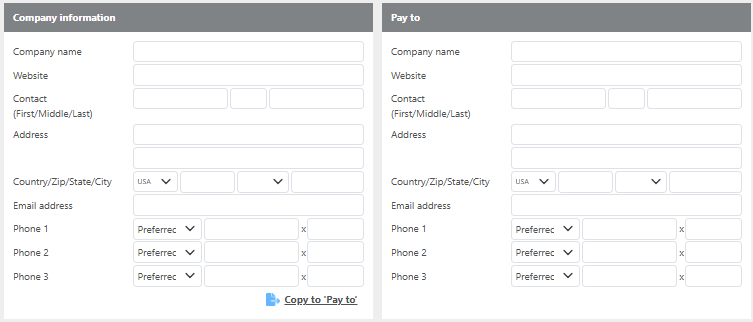
Note: The Company Information should reflect the carrier's physical address. The Pay To information should reflect where the carrier's settlement will be sent.
|
Field |
Description |
|
Company name |
Enter the company's name. |
|
Website |
Must be entered in the format: |
|
Contact (First/Middle/Last) |
Enter the primary contact name for this carrier. |
|
Address |
Enter the carrier's street address. |
|
Country/Zip/State/City |
Enter the zip code to auto-fill the remaining fields. |
|
Email address |
Must be unique and valid. A valid email address increases system functionality, particularly for Ditat's email integrations. |
|
Phone 1/2/3 |
Enter one or more phone numbers for this carrier. |
|
Copy To 'Pay To' |
Click this if the Pay To information is the same as the Company Information. The Pay To details are what will appear on settlements. |
Company Identification
|
Field |
Description |
|
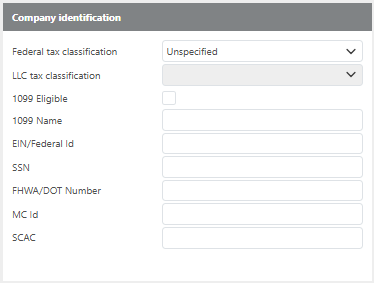
Federal tax classification |
Select the company's federal tax classification from the listed options. |
|
LLC tax classification |
If the company is classified as an LLC, select the specific LLC tax classification from the listed options. |
|
1099 Eligible |
Check this box if this carrier is 1099 eligible. |
|
EIN/Federal Id |
Enter the company's Employer Identification Number or Federal Tax Identification Number. |
|
SSN |
If the company operates under a Social Security Number, enter it here. |
|
FHWA/DOT Number |
Enter the company's Federal Highway Administration/Department of Transportation number. |
|
MC Id |
Enter the company's Motor Carrier Identification number. |
Pay
|
Field |
Description |
|
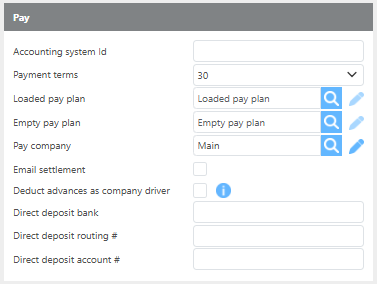
Accounting system Id |
Enter the ID used by the accounting software integrated with Ditat TMS. |
|
Payment Terms |
Enter the payment terms for this carrier. |
|
Loaded pay plan |
Select the loaded pay plan for this carrier. If the carrier uses a percentage-based pay plan, enter it here. |
|
Empty pay plan |
Select the empty miles pay plan for this carrier. This field is not needed for most pay plans — empty miles can instead be added to the Flex Pay section of the Loaded Pay Plan. |
|
Pay company |
Select which of your companies will pay this carrier. |
|
Email settlement |
Check this box to automatically email the carrier's settlement when a settlement batch is posted. |
|
Deduct advances as Company driver |
Check this box if this carrier should be treated as a company driver when advances are imported. This should be used when the carrier is set up as type Lessor and is linked to a driver profile. |
|
Direct deposit bank |
Enter direct deposit bank information here. This is for your records only and will not be used by the system. |
|
Direct deposit routing # |
Enter direct deposit routing number here. This is for your records only and will not be used by the system. |
|
Direct deposit account # |
Enter direct deposit account number here. This is for your records only and will not be used by the system. |
Note: Pay plans should only be entered at the carrier level if the carrier type is Carrier. If this is a Lessor, apply the pay plan at the driver level instead.
Check List
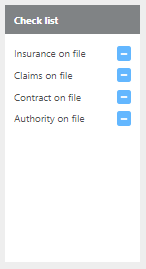
Check all items that apply to this carrier.
|
Field |
Description |
|
Insurance on file |
Check this box if you have insurance documentation on file for this carrier. |
|
Claims on file |
Check this box if you have claims documentation on file for this carrier. |
|
Contact on file |
Check this box if you have a signed contract on file for this carrier. |
|
Authority on file |
Check this box if you have authority documentation on file for this carrier. |
Additional contacts

Click Add to enter additional contacts for this carrier. A window will open allowing you to enter the contact details.
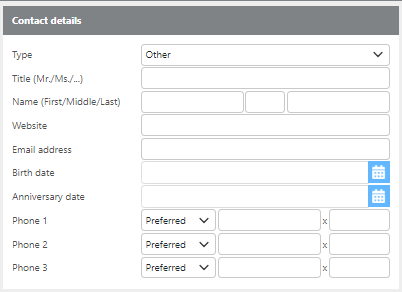
Note: Any additional contacts added under the Accounting Group will receive a copy of the settlement if the carrier is set to receive emailed settlements.
Insurance

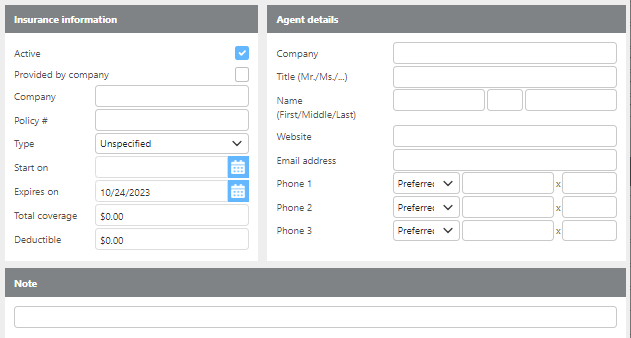
Click Add to enter insurance information for this carrier. A window will open allowing you to add the policy details to the carrier's file.
SaferWatch Provided Information
This section is visible only if Ditat TMS is integrated with SaferWatch. To set up the SaferWatch integration, visit Set Up Dispatch Options.
To enable the saferWatch Integration, please reach out to sales@ditat.com.
Highway
Note: The Highway section is only visible if you have an active Highway integration on your account. For information on setting up the Highway integration, contact sales@ditat.com.
|
Field |
Description |
|
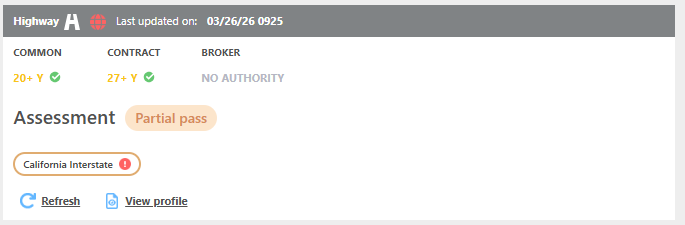
Status Icon 
|
Displays the carrier's current Highway status. Hover over the icon to view the status. |
|
Common |
Shows how long this carrier has been a Common Carrier. |
|
Contract |
Shows how long this carrier has been a Contract Carrier. |
|
Broker |
Shows how long this carrier has had Brokerage Authority. |
|
Assessment |
Indicates whether the carrier's assessments Pass, Partially Pass, or Fail your company's rules configured in Highway. If a partial pass contains an assessment you want to ignore, update it in Highway and use the Refresh button to pull the updated result into Ditat. |
|
Refresh |
Pulls the latest updates for this carrier's profile from Highway. |
|
View Profile |
Opens this carrier's profile in Highway for viewing or editing. |
Note: The View Profile option requires users to have previously logged into Highway using their credentials. Once credentials are added, this button will open your account to the correct carrier, saving time searching.
Highway has 2 properties:
-
Status
-
Assessment
Status = ‘Do not use’, ‘Onboarded’, ect.. Ditat needs the status to be ‘Onboarded’
Assessment = Parameters Highway uses as rules to allow or disallow carriers. This needs to be ‘PASS’
If either property is not met, the trip assignment will fail for the carrier.
The Highway integration links carriers based on the DOT number, if you have a carrier with that was added with the wrong DOT number that carrier will not be updated through the Highway integration.