
To access the tab: Rate & Pay-> Detention Board
Navigation: Rate & Pay → Detention Board
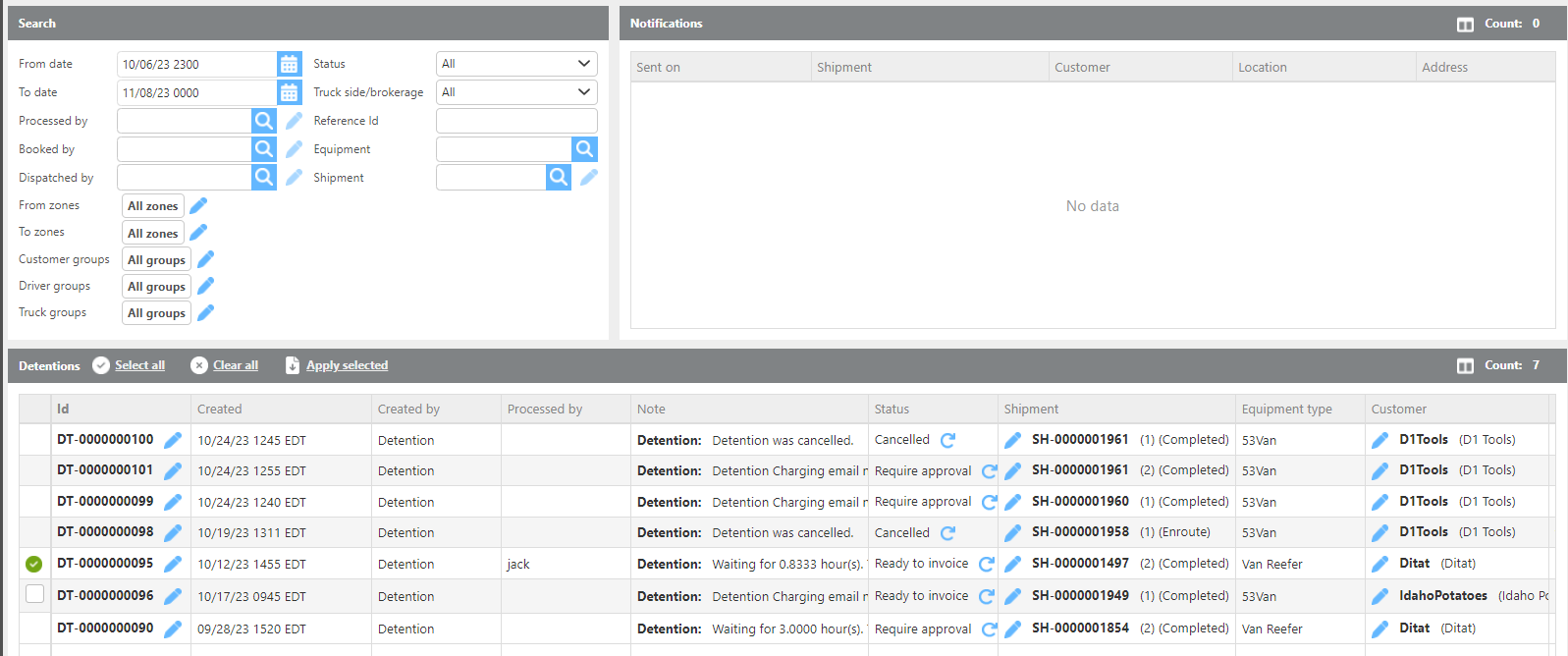
The Detention Board allows users to view detentions that have been created or are pending creation by the detention module. The board supports customization through filters and groups so each user can configure their view to their preference.
Tool Bar
|
Field |
Description |

|
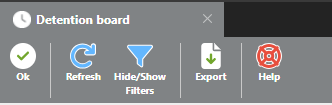
Exits the Detention Board. You can also close it using the X on the Detention Board tab. |

|
Refreshes the data on the screen. |

|
Hides or shows the filter panel for better screen visibility. Toggle as needed. |

|
Exports the current Detention Board data to a CSV file. |

|
Opens the help guide. |
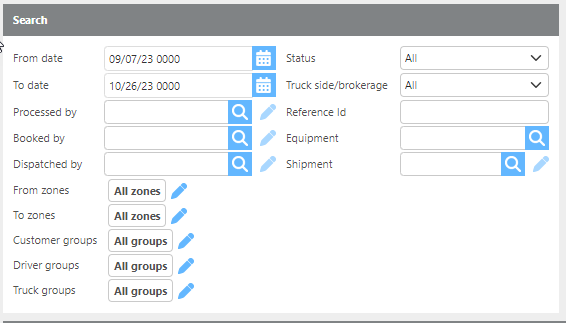
Note: If a detention has no Processed By, Booked By, or Dispatched By user assigned, it will appear in all searches to ensure it is not overlooked.
|
Field |
Description |
|
From/To date |
Filter detentions by their created date range. |
|
Status |
Filter by a specific detention status. Select All to display detentions regardless of status. |
|
Truck side/Brokerage
|
Select All to display both truck side and brokerage detentions, or select one to filter further. |
|
Processed by |
Filter detentions by the user who processed them. |
|
Reference Id |
Search for detentions using any of the five reference fields on the associated shipment. |
|
Booked by |
Filter detentions by the user who booked them. |
|
Equipment |
Filter detentions by the assigned equipment type. |
|
Dispatched by |
Filter detentions by the user who dispatched them. |
|
Groups |
Filter the board by pickup or delivery zone, or by customer, driver, or truck custom groups. |
Notifications
The Notifications section displays a list of detentions that are possible but have not yet officially started. These are loads for which notification emails have been sent to alert the relevant parties of a potential detention, but no actual detention charge has been created in the system yet.
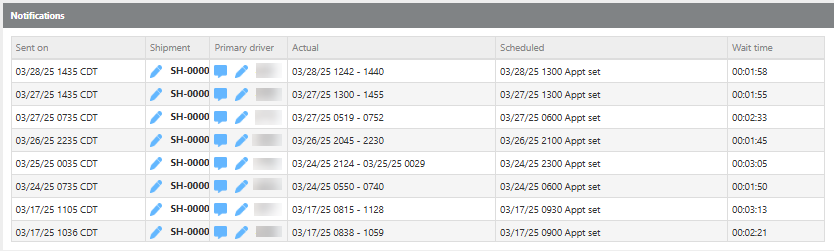
This section allows your team to monitor developing situations before they become active detentions.
Detentions
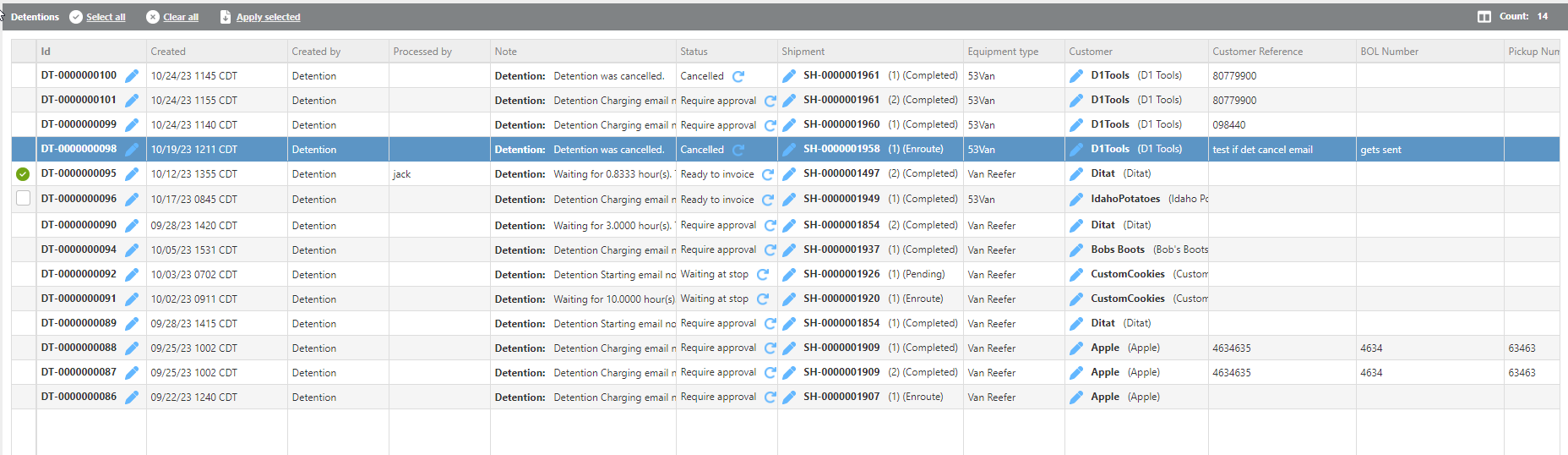
Applying Detentions
To apply detention charges to a shipment, check the box to the left of each detention you want to apply, then click Apply Selected.
|
Field |
Description |
|
Select all |
Selects all detentions currently displayed. |
|
Clear all detentions |
Clears all current selections. |
|
Apply selected |
Applies the selected detention charges to their corresponding shipments. |
|
Column selector 
|
Click the column selector icon to choose which columns are displayed on the board. This icon also shows a count of detentions in the current search. Columns can be rearranged and hidden, and each user can save their own board layout. Click Refresh to save your settings. |