
Navigation: Rate & Pay → Apply Advances
Click here for information on how to use a data entry window.
Apply Advances is where you determine how advances will be deducted from drivers.
When advances are imported and posted, the system automatically looks up the trip that the payee was on at that time and links it to the advance. That trip will appear as the suggested trip when the Apply Advances screen is opened. Use the trip matching filter for trip suggestion options.
If the payee was not on a trip at the time the advances, select Deduction from the drop menu and apply the advance as a deduction.
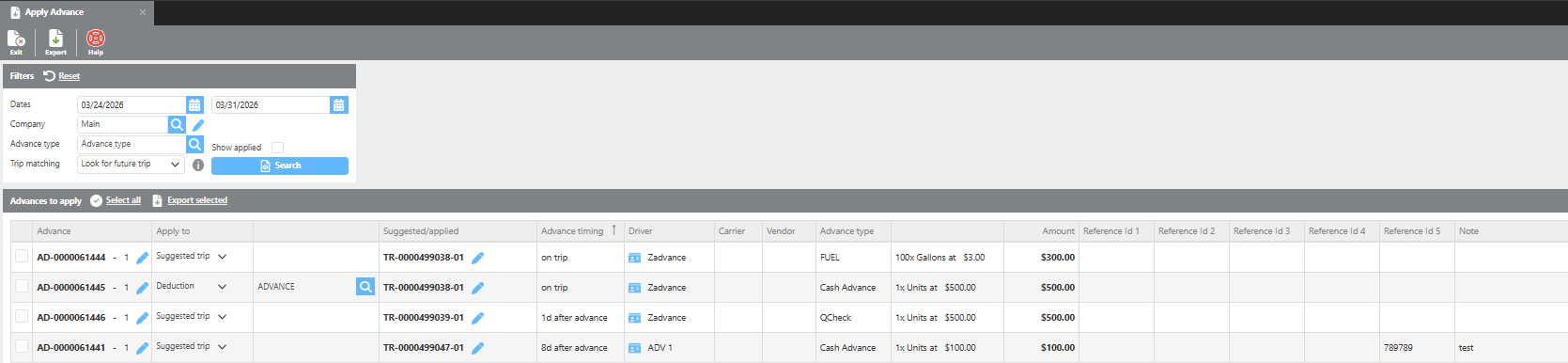
Apply Advances Filters
|
Field |
Description |
|
Date |
Use this date range to select advances. |
|
Company |
Select the company for which advances to apply. |
|
Advance type |
Leave empty to apply all advances or select an advance to narrow results. |
|
Show applies |
Check this box to display already applied advances. |
|
Trip matching |
Select how trips should be suggested. Exact match: Will suggest a trip the driver was on at the time of the advance. Look for future trip: Will check for trip after the advance. Look for past trip: Will check for a trip before the advance. |
Apply Advances Fields
|
Field |
Description |
|
Advance |
Displays the advance number. Click the pencil icon to view the full details for this advance. |
|
Apply to |
Select how to apply this advance. The system will suggest a trip based on the trip the payee was on when the advance was posted. You can accept the suggestion, manually select a different trip, or choose Deduction to create a deduction for this advance instead. |
|
Suggested/Applied |
Displays the trip the system suggested, or how the advance was actually applied if the suggestion was changed. |
|
Driver |
Displays the driver this advance was issued to. |
|
Carrier |
Displays the carrier this advance was issued to. |
|
Vendor |
Displays the vendor this advance was issued to. |
|
Advance type |
Displays the type of advance being applied. |
|
Description |
Displays the units and rate for this advance line. |
|
Amount |
Displays the amount to be deducted for this advance line. |
|
Reference numbers |
Displays the reference numbers associated with this advance. |
|
Location |
Displays the location where this advance was issued. |
|
Company |
Displays the company that issued this advance. |
|
Note |
Displays the notes from the advance record. |
Linking Fuel Card Imported Advances
