
The load activity report is a trip-based report that will show load activity specified with the parameters below.
This report is based off of trips and then pulls in shipment data.
This means shipments with no trips will not show on this report, where trips with no shipments (Non-Revenue) loads will be found on the report.
Recommendation
Use fewer filters to provide more data.
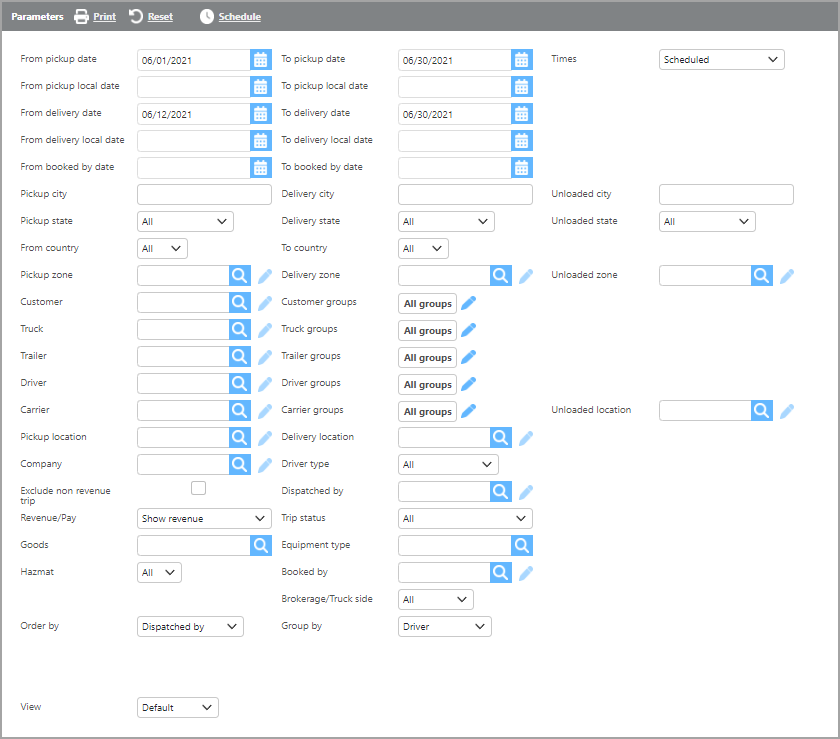
Report Parameters
|
Field |
Description |
|
From/To Pick up date |
Select a pickup date range for loads to view. |
|
From/To Pick up local date |
Enter a local date and time to see results for. If local date/time and pickup date are both selected, local time will be used for results. |
|
Times |
Select if you want the report to show scheduled delivery times or the check call times. |
|
From/To Delivery date |
Select a delivery date range for loads to view. |
|
From/To Delivery local date |
Enter a local date and time to see results for. If local date/time and delivery date are both selected, local time will be used for results. |
|
From/To booked by date |
Select a date range of when the loads were entered. |
|
Pickup city |
Enter a pickup city here to see only loads out of that city. |
|
Delivery city |
Enter a delivery city here to see only loads out of that city. |
|
Unloaded city |
Enter an unloaded city here to see only loads out of that city. |
|
Pickup state |
Select a specific pickup state and only loads with that pickup state will show. |
|
Delivery state |
Select a specific delivery state and only loads with that delivery state will show. |
|
Unloaded state |
Select a specific unloaded state and only loads with that unloaded state will show. |
|
From country |
Select a pickup country to show only loads with that country of origin. |
|
To country |
Select a delivery country to show only loads delivering to a specific delivery country. |
|
Pickup zone |
Select a specific pickup zone and only loads with that pickup zone will show. |
|
Delivery zone |
Here you can select a specific delivery zone and only loads with that delivery zone will show. |
|
Unloaded zone |
Select a specific unloaded zone and only loads with that unloaded zone will show. |
|
Customer |
If a customer is selected, you will only see loads done for that customer. |
|
Truck |
Select a truck or leave blank for all. |
|
Trailer |
Select a trailer or leave blank for all. |
|
Driver |
Select a driver or leave blank for all. |
|
Carrier |
Select a carrier or leave blank for all. |
|
Groups |
Here you can choose from your custom groups. If a group is selected the report will only show loads for the selection in the group. |
|
Pickup location |
Select a specific pickup location and only loads with that pickup location will show. |
|
Delivery location |
Select a specific delivery location and only loads with that delivery location will show. |
|
Unloaded location |
Select a specific unloaded location and only loads with that unloaded location will show. |
|
Company |
Select a company to run this report for. (This will provide data if this company is listed on the shipment or set to pay the assigned driver) |
|
Driver type |
Select a specific driver type to run this report for. (company/lease/all) |
|
Exclude non-revenue trips |
Check this box if non-revenue trips should be excluded from this report. (Trips without a shipment) |
|
Dispatched by |
Select a specific dispatched by user to run this report for. |
|
Revenue/Pay |
Select from the list if you want to show revenue, pay, or linehaul revenue only. |
|
Trip status |
Select if you only want to see loads with a specific trip status. |
|
Goods |
Select if this report should only show loads hauling certain goods types. |
|
Equipment type |
Select if this report should only show loads hauled by a specific equipment type. |
|
Hazmat |
Select if you want to show hazmat loads, not show them, or show all. |
|
Booked by |
Select a specific booked by user to run this report for. If the Booked by field is blank on the shipment but the Entered by field matches the user you are running the report for, those loads will also be listed. |
|
Brokerage/Truck side |
Select if you want to see loads booked for brokerage or for your trucking side. |
|
Order by |
Select from the drop-down how you would like the shipments ordered on the report. |
|
Group by |
Select from the drop-down if/how you would like the shipments grouped. |
|
View |
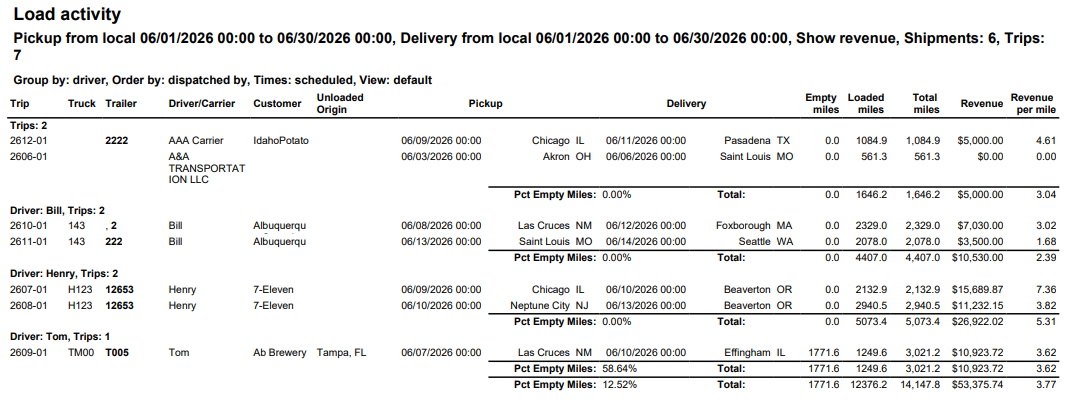
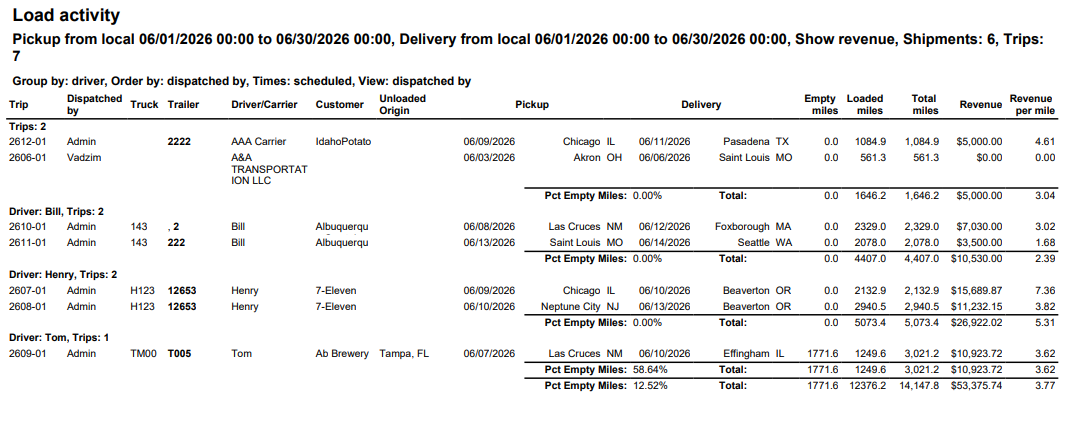
This report can be viewed in the Default view or the Dispatchers view (which has an extra column for ‘Dispatched by’ user. |
Default view
Dispatchers view
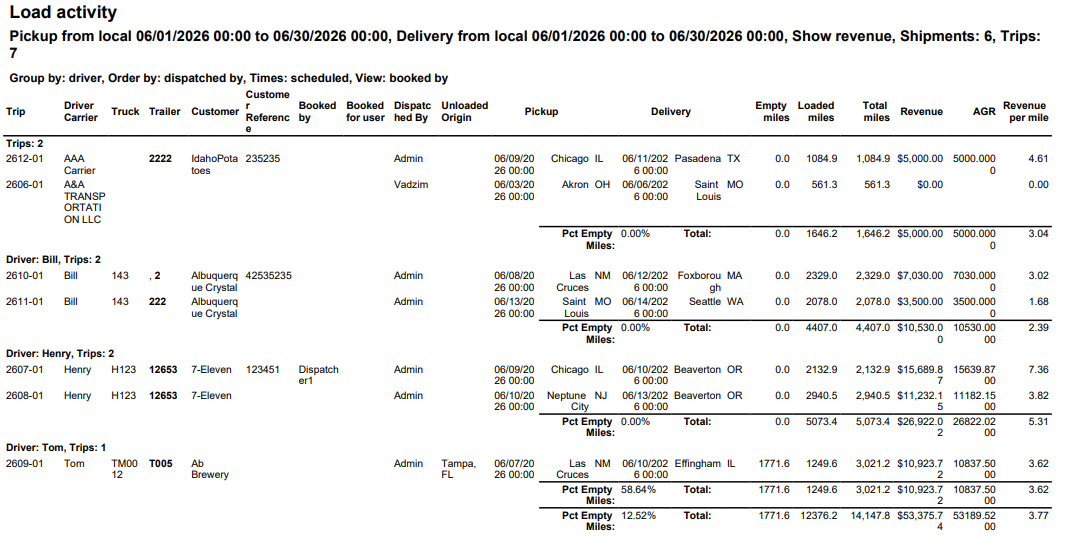
Booked by view
Weight view
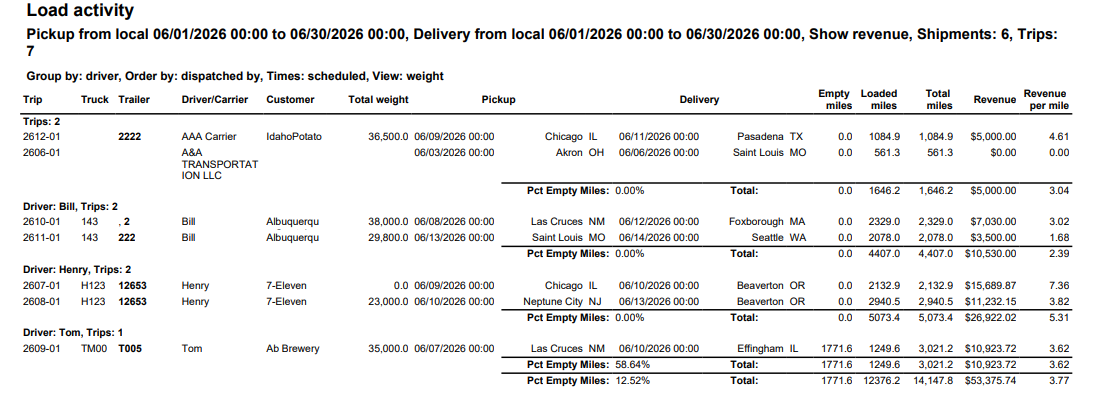
Report Columns
|
Field |
Description |
|
Trip |
The trip number. |
|
Dispatched by* |
In the Dispatchers view, this column will display showing what user dispatched the trip. |
|
Truck |
The truck Id. |
|
Trailer |
The trailer Id. |
|
Driver |
The driver Id. |
|
Customer |
The customer Id. |
|
Unloaded Origin |
The city of the unloaded origin city and state. |
|
Pickup |
The city of the pickup city and state. |
|
Delivery |
The city of the delivery city and state. |
|
Empty miles |
The empty miles. |
|
Loaded miles |
The loaded miles. |
|
Total miles |
The total miles. |
|
Revenue/Pay |
This column displays the revenue or pay based on parameter selection. |
|
Revenue/Pay per mile |
This column displays the revenue or pay per mile based on parameter selection. |